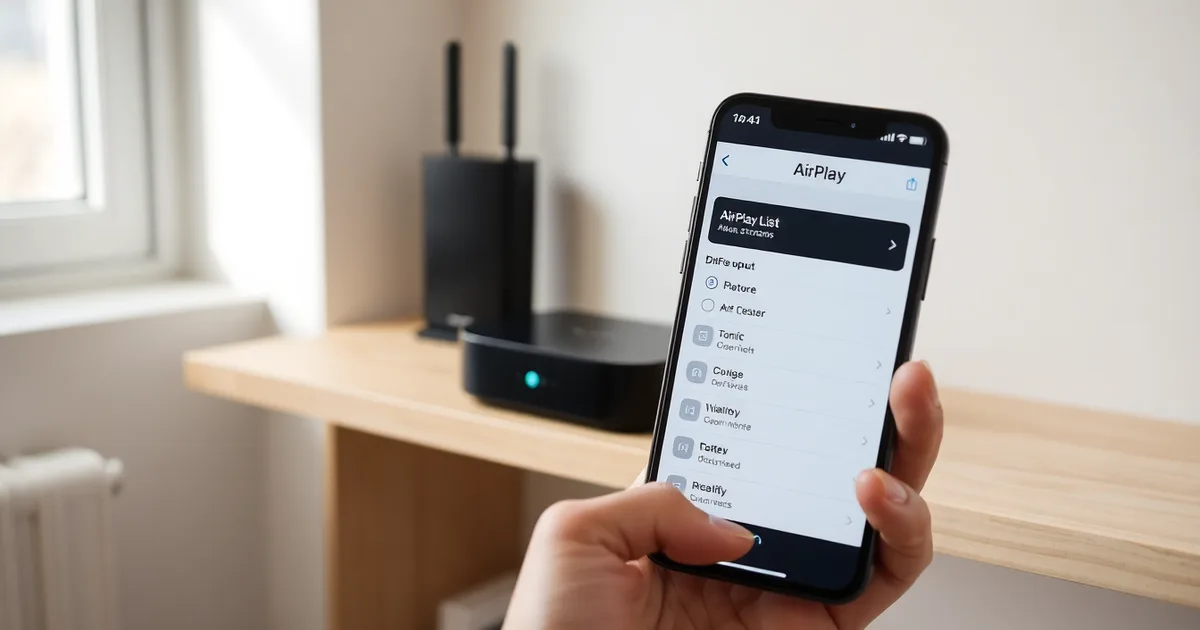
The WiiM Pro Plus vanishes from AirPlay 2 because its mDNS announcements are blocked or the streamer sits on a different subnet than your iPhone. Check that both share the same band and subnet, turn off AP isolation, IGMP snooping and multicast filtering, then power-cycle both devices. A factory reset is almost never needed.
AirPlay 2 has no central server. Every device advertises itself over multicast DNS on UDP port 5353, roughly once a second, and your iPhone builds its device list purely from those broadcasts. Block that traffic anywhere along the path and the WiiM Pro Plus becomes invisible while still holding a valid IP address and playing Spotify Connect perfectly. That mismatch is what convinces people the hardware has died.
The Wi-Fi spec is the second trap. The Pro Plus is a 2.4 GHz-only radio, a deliberate choice that keeps the price at $219 and the antenna small, but it means a router with separate SSIDs can strand your iPhone on 5 GHz while the streamer sits on the 2.4 GHz network. Those are usually different subnets. Guest networks and mesh nodes in bridge mode cause the same split, and so does a stale DHCP lease after you swap routers.
Firmware 4.8.5, pushed in March 2025, patched a discovery bug where the WiiM stopped re-announcing itself after roughly 40 minutes of idle. If your unit is older, open the WiiM Home app and check the version before you touch the router.
- mDNS on port 5353: AirPlay 2 discovery relies entirely on multicast DNS over UDP 5353, so any router setting that filters multicast hides the WiiM Pro Plus from iOS without breaking its internet connection.
- 2.4 GHz only hardware: The WiiM Pro Plus has no 5 GHz radio, so on routers with split SSIDs your iPhone must join the 2.4 GHz network or the two devices end up on different subnets.
- Firmware 4.8.5 fix: WiiM shipped firmware 4.8.5 in March 2025 to fix a bug where the device stopped broadcasting its AirPlay presence after sitting idle; check your version in the WiiM Home app.
- Reset erases presets: A factory reset wipes every EQ preset and stored Wi-Fi credential, so try a 10-second power cycle on both the WiiM and the iPhone first.
- Mesh and VLAN rules: Apple requires both AirPlay 2 endpoints on the same VLAN and subnet, typically 192.168.1.x, which means guest networks and isolated mesh nodes will never show the device.
Why does my WiiM Pro Plus disappear from AirPlay 2 on iPhone?
AirPlay 2 has no central registry of devices. When you open the AirPlay picker on an iPhone, iOS fires a multicast DNS query to the local network on UDP port 5353 and waits roughly a second for anything advertising the _raop._tcp service to answer. Your WiiM Pro Plus answers that query with its name, IP address and port. Nothing else confirms it exists. If that multicast packet never reaches the phone, or the reply never gets back, the device is invisible — not offline, not broken, just unreachable in the only way AirPlay cares about.
That is why the failure is so often a router setting rather than a WiiM fault. IGMP snooping is the usual culprit: it exists to stop multicast flooding every port on a switch, but on consumer routers it frequently drops group membership for devices that have gone quiet. AP isolation (sometimes labelled "client isolation" or "wireless isolation") is the blunter version — it stops wireless clients talking to each other entirely, which kills mDNS outright. Some mesh systems also ship with multicast filtering on by default, and a two- or three-node mesh will happily pass mDNS between nodes while blocking it across the wired backhaul.
The band split catches people who never touched a router setting at all. The WiiM Pro Plus is 2.4 GHz only. If your router publishes separate SSIDs — say HomeWiFi and HomeWiFi_5G — and your iPhone has joined the 5 GHz one, the two devices can end up on different subnets or on VLANs that don't forward multicast between them. Your WiiM might sit at 192.168.1.x on the 2.4 GHz radio while the phone lands on 192.168.50.x on the other. Same router, different network, no discovery.
Before you go near a factory reset, check the WiiM's firmware. Version 4.8.5, released March 2025, fixed a set of AirPlay discovery failures, so a unit still on an earlier build can drop off the picker under conditions that a current one handles. Update through the WiiM Home app, then power-cycle the unit — ten seconds unplugged is enough — and recheck. A reset button held for ten seconds wipes your EQ presets and room correction for a problem that was almost certainly the network.
Check your network band and subnet: the most common fix
Run this check before you touch the reset button. It applies any time the WiiM Pro Plus still shows a solid or slowly pulsing LED (meaning it has joined some network) but the AirPlay 2 icon has vanished from the iPhone Control Centre or the Music app's output list. You need about four minutes, your iPhone, and the WiiM Home app already paired to the device. Nothing here costs money or wipes a preset.
- On the iPhone, open Settings > Wi-Fi and tap the blue i next to the connected network name. Write down the IP address and the router address. A typical home result is 192.168.1.5 with a router at 192.168.1.1. If the address starts 169.254.x.x, the iPhone never got a DHCP lease and nothing downstream will work — rejoin the network first.
- Open the WiiM Home app, tap the device name, then Device Settings > Network. The IP will be listed alongside the SSID and signal strength. Note it exactly, including the last octet.
- Compare the first three octets. iPhone at 192.168.1.5 and WiiM at 192.168.1.42 share
192.168.1and are on the same subnet. An iPhone on 192.168.1.x talking to a WiiM on 192.168.50.x is the single most common cause of an empty AirPlay list, and no amount of rebooting fixes it. - Confirm the SSID matches, character for character. Many routers ship with a separate
-5Gor-5GHzSSID, and some mesh systems create a guest SSID that looks almost identical to the main one. The WiiM Pro Plus is a 2.4 GHz-only radio, so it will always be on the 2.4 GHz name. If your iPhone is sitting on the 5 GHz SSID, move it to the 2.4 GHz one and retest — leave it there for the rest of this procedure. - Watch for the hidden case: routers that broadcast one SSID on both bands but place each band on a different VLAN. The names match, the subnets don't. If the octets differ despite a single SSID, that's what you're looking at, and it needs to be fixed in the router's band steering or VLAN settings.
- Do not factory reset yet. Most published guides lead with the 10-second reset per the manual. That erases your parametric EQ curve, room-correction filters, and input naming, and it does nothing for a subnet mismatch or a blocked multicast packet. Reset is step nine, not step one.
- If the subnets match and AirPlay is still absent, power-cycle the router and then the WiiM — 10 seconds unplugged for each, router first, WiiM second. Give discovery 2-3 minutes to repopulate. mDNS (Bonjour) runs over UDP port 5353, and a router that has been up for months can stop forwarding multicast between clients without any obvious symptom.
- Check for AP isolation and IGMP snooping in the router's wireless settings. AP isolation blocks client-to-client traffic outright, which kills AirPlay 2 discovery dead. Buggy IGMP snooping implementations on some mesh firmwares (often 2-3 nodes, all of which must sit on one subnet) drop multicast group joins after a node roams. Turn AP isolation off; if the problem started right after a mesh firmware update, turn IGMP snooping off as a test.
- Only now, if every address checks out and multicast is flowing, update firmware. WiiM shipped version 4.8.5 in March 2025 specifically to fix AirPlay discovery failures, so a unit stuck on an older build is worth patching via the app before you consider a hardware fault.
The failure mode to expect: you fix the subnet, AirPlay appears, and then it disappears again the next morning after the iPhone roams to a different mesh node or back to 5 GHz. That's not a regression — it means the underlying isolation or snooping rule is still in place and you only worked around it. Go back to step 8 and change the router setting rather than repeating steps 1 through 5.
Router settings that break AirPlay 2 discovery (and how to fix them)
AirPlay 2 depends on mDNS, which sends its queries over UDP port 5353 to the multicast address 224.0.0.251. Many consumer routers treat multicast as noise and quietly drop it, or isolate wireless clients from each other by default. Either behaviour makes the WiiM Pro Plus invisible while it is still happily connected to Wi-Fi.
The table below covers the settings that most often cause this. Log into your router's admin page, usually at 192.168.1.1 or 192.168.0.1, and check each one in turn.
| Router setting | Default on many routers | Recommended state | Why it matters for AirPlay 2 |
|---|---|---|---|
| AP isolation (client isolation) | Off on most home routers, on for guest SSIDs | Off | Blocks iPhone-to-WiiM traffic entirely, even on the same subnet |
| IGMP snooping | On | Off if discovery still fails | Some firmware versions drop mDNS packets when no IGMP join is seen |
| Multicast filtering / multicast-to-unicast | On for Wi-Fi 6 and mesh systems | Off | Converts or discards UDP 5353 traffic before it reaches the WiiM |
| Guest network | Separate SSID, isolated by design | Move WiiM to the main SSID | Guest networks almost always block mDNS between clients |
| Band steering / band split | Single SSID on both 2.4 GHz and 5 GHz | Pin WiiM to 2.4 GHz | WiiM Pro Plus connects on 2.4 GHz only; forcing 5 GHz fails |
| Mesh node assignment | Automatic, 2-3 nodes typical | All nodes on 192.168.1.x | A node in router mode creates a second subnet and hides the WiiM |
For most people the fix is the first row: AP isolation off, then a 10-second power cycle of the WiiM Pro Plus. If that does not work, turn off multicast filtering next, since Wi-Fi 6 mesh systems enable it by default and it is the single most common cause of discovery failing after a router upgrade. IGMP snooping is the one case where the honest answer depends on your hardware: on older Netgear and TP-Link firmware, leaving it on is fine and disabling it can cause multicast flooding across a busy network, but on certain Asus and mesh firmware builds from 2023 onward, snooping has to be off before mDNS gets through. Test it both ways and keep whichever one makes the WiiM appear within 30 seconds.
Firmware, app, and iPhone updates you should install first
Before you touch a single router setting, check your versions. Three separate pieces of software have to agree with each other for the WiiM Pro Plus to stay visible: the speaker's own firmware, the WiiM Home app that configures it, and iOS on the iPhone doing the browsing. Older builds on any one of them can produce exactly the symptom you're seeing, where the device shows up for a few seconds at setup and then drops off the AirPlay list for good.
- WiiM Pro Plus firmware, minimum 4.8.5. That build shipped in March 2025 and specifically fixed AirPlay discovery failures that had been reported since late 2024. Open the WiiM Home app, tap the device, go to Settings then Device Info, and read the firmware line. If it says 4.8.4 or lower, tap the update prompt. The download runs about 40 MB and the device reboots itself once.
- iOS, current release. As of September 2026 that means iOS 19. Older iOS builds have shipped broken Bonjour resolution twice in the last four years, most memorably a 17.4.1 regression that made third-party AirPlay receivers vanish from Control Centre until Apple patched it in 17.4.3. Check Settings > General > Software Update.
- WiiM Home app from the App Store. The app version matters less than the firmware, but a stale build can report the wrong device state or fail to hand off the mDNS advertisement correctly after a reinstall. Look for 2.x or later. If the App Store shows no update available, delete the app and reinstall it — this preserves your EQ presets, which live on the device, not in the app.
- Router firmware. Most people skip this one. A 2023-era Netgear or TP-Link build can have IGMP snooping bugs that silently drop multicast traffic after a set number of hours of uptime. Check your router's admin page for a firmware update and install it, then reboot.
- Full power cycle after updating — 10 seconds unplugged. Not a soft restart from the app. Pull the power cable from the WiiM Pro Plus, count to ten, plug it back in. The mDNS advertisement is broadcast fresh on boot, and a cold start clears any stale cache from the previous firmware.
- Do not update over Wi-Fi if the signal is below three bars. A dropped firmware write can brick the AirPlay module while leaving the rest of the device working, which looks exactly like a discovery bug. If you can't get a clean signal, run an Ethernet cable to the WiiM for the update — the Pro Plus has a port on the back.
The one people get wrong is the power cycle. They tap Restart in the WiiM Home app, see the light blink, and assume that's equivalent. It isn't. A soft restart leaves the network stack in whatever state it was, including a stale mDNS registration that the router has already aged out. The 10-second unplug forces the device to re-announce itself on UDP 5353, and that alone resolves a meaningful share of "vanished from AirPlay" reports.
The 10-second power cycle that fixes most AirPlay dropouts
Reach for this when the WiiM Pro Plus vanished from the AirPlay 2 list on your iPhone after a router reboot, a power cut, or a firmware update, and you have already confirmed both devices sit on the same subnet. You lose nothing by trying it: EQ presets, room correction, and input names survive because nothing is erased. A factory reset is the nuclear option and you should not need it for a discovery problem.
What you need is physical access to the WiiM's power supply for about a minute, your iPhone, and a router that is on. Note the expected behaviour before you start: the WiiM takes roughly 30 seconds from power-on to broadcasting itself over mDNS (Bonjour, UDP port 5353), so a device that is absent for the first half-minute is not broken. If your unit is running anything older than firmware 4.8.5, released March 2025, the discovery fix in that build matters and the power cycle is a temporary workaround at best.
- Leave the WiiM Home app open on your iPhone so you can watch the device list without re-navigating. Takes two seconds and saves you a tab switch later.
- Pull the WiiM Pro Plus's power adapter out of the wall socket, not the barrel connector on the back of the unit. The connector is the more fragile of the two and there is no reason to stress it.
- Wait a full 10 seconds with the unit unplugged. This is the step people botch. Count it out. A three-second yank leaves residual charge in the supply and the board does not always restart cleanly, which is how you end up repeating the whole process twice.
- While it sits unplugged, open iPhone Settings, turn Wi-Fi off, wait five seconds, turn it back on, and rejoin your network. This forces the phone to re-issue its mDNS queries instead of holding a stale cache entry for a device that no longer answers.
- Plug the WiiM back in. The status LED starts blinking within a few seconds.
- Wait 30 seconds before touching anything. Do not open the WiiM Home app yet. Launching it during boot can send the app looking for a device that has not finished announcing itself, and it will cache that failure.
- Open Control Centre on the iPhone, tap the AirPlay icon, and look for the WiiM in the output list. It should be there within 30 seconds of the LED settling to solid.
- If it appears, play something for 15 seconds to confirm the connection holds. A device that shows up and drops again after ten seconds has a different problem, most likely IGMP snooping or AP isolation on your router, and the power cycle will not save you.
The failure mode to watch for is a WiiM that reappears in the AirPlay list, accepts a connection, then silently drops off within a minute or two. That is not a hidden hardware fault and another power cycle will not fix it. It means multicast traffic is being pruned or blocked somewhere between the phone and the WiiM, and you need to be in the router's admin page rather than on the floor behind the cabinet. The same applies if the WiiM never shows up at all after two clean attempts: at that point you are chasing a network isolation issue, not a stuck device.
When a factory reset is actually necessary (and how to avoid losing settings)
Reset the WiiM Pro Plus only after you have ruled out every network cause. That means confirming both devices sit on the same subnet (192.168.1.x, not a guest SSID handing out 192.168.4.x), that AP isolation and IGMP snooping are off, and that UDP 5353 traffic is not being filtered. If mDNS discovery is broken, a fresh device will vanish from AirPlay 2 just as quickly as the old one, and you will have wiped your EQ curves for nothing.
The genuine reset cases are narrow. A corrupted Wi-Fi credential store that survives repeated power cycles, a failed firmware flash that leaves the unit unresponsive to the WiiM Home app, or a device that has been moved between two networks often enough that its stored profile is a mess. Firmware 4.8.5, released March 2025, addressed a batch of AirPlay discovery bugs, so if you are below that version, update first through the app rather than reaching for the reset button.
Backing up before you wipe
The WiiM Home app lets you save custom EQ presets to a named profile, but it does not export them as a file you can carry to a different device, so treat any "backup" as local to your account. If the app offers no export on your firmware, photograph every parametric EQ band and its gain value. Ten minutes with a phone camera beats rebuilding a 10-band curve from memory.
When you do commit, hold the reset button for 10 seconds per the manual, then re-add the device in the WiiM Home app. It will request your 2.4 GHz credentials, since the Pro Plus does not join 5 GHz. AirPlay 2 should reappear in the iPhone's Control Centre within roughly 30 seconds of the device showing as online. If it does not, the problem was never the device.
Mesh networks and AirPlay 2: why your WiiM keeps vanishing
A mesh kit sold as a single Wi-Fi name is often running two or three nodes as separate routed networks, and that is enough to hide the WiiM Pro Plus from the iPhone's AirPlay list. Every node must hand out addresses from the same pool — if your primary router gives the WiiM 192.168.1.47 and a satellite node hands the iPhone 192.168.68.112, mDNS over UDP 5353 has nowhere to travel. Bonjour does not route between subnets by default, and no amount of restarting the speaker will change that. Put the mesh into bridge or access-point mode so one device does DHCP for the whole house, and the discovery problem usually evaporates within a minute.
Client steering is the second trap, and it catches the WiiM specifically because the Pro Plus is a 2.4 GHz-only radio. A mesh system doing band steering sees a device that has never associated on 5 GHz, assumes it is a straggler, and repeatedly nudges it toward a band the hardware cannot join. In the mesh app, look for "band steering", "client steering" or "band balancing" and turn it off, or create a separate 2.4 GHz SSID and join the WiiM to that one from the WiiM Home app. If your nodes broadcast different SSIDs, fix that too — the WiiM cannot roam between names, and half the mesh will look like a dead zone.
The vendor toggle that makes it worse
Several mesh vendors ship an "AirPlay optimization" or "Bonjour/multicast boost" switch that claims to smooth discovery. In practice it often does the opposite: it proxies multicast through the node rather than passing it, and AirPlay 2 control traffic gets mangled in the process. If the WiiM appears, plays for a day, then drops off again after a node reboot, turn that setting off before you touch anything else. Disable IGMP snooping on the same screen if it is exposed — with it on, some nodes prune the multicast group the iPhone is querying and the speaker never answers.
Firmware matters here as a background fact, not a fix. WiiM shipped firmware 4.8.5 in March 2025 specifically to clean up AirPlay discovery behaviour, so confirm your unit is on that build or later in the WiiM Home app. That said, if the topology is wrong, 4.8.5 will not save you. Mesh trouble is a routing and multicast problem, and the only hardware fault in the picture is the one you have not ruled out yet — which is why the 10-second unplug is worth doing once, and why the 10-second factory reset button hold is not.
What to do if the WiiM Pro Plus still doesn't show up after all fixes
Everything up to this point assumes your network is behaving normally and the WiiM is simply being overlooked. These steps are for the case where you have already confirmed both devices sit on the same subnet, IGMP snooping and AP isolation are off, and firmware is current, yet the AirPlay 2 icon still refuses to appear in the iPhone Control Center. At that stage you are no longer debugging settings. You are isolating which piece of hardware is actually dropping the discovery traffic.
- Pin the WiiM to a static IP inside your router's DHCP table. Log into the router admin page (usually 192.168.1.1 or 192.168.0.1), find the WiiM Pro Plus in the client list by its MAC address, and bind it to a fixed address such as 192.168.1.240. The WiiM's own app has a static IP field, but assigning it from the router is safer because it keeps the lease consistent across reboots. If the WiiM changes address after every router restart, AirPlay 2 discovery can stall for several minutes while Bonjour re-advertises the new one on UDP port 5353.
- Swap the Wi-Fi band deliberately and confirm which radio the WiiM is using. The Pro Plus connects on 2.4 GHz only, so if your router runs a single SSID that steers clients between bands, the WiiM and the iPhone can end up on different radios behind the same name. Split the SSIDs into separate 2.4 GHz and 5 GHz networks, join the WiiM to the 2.4 GHz one, and leave the iPhone wherever it gets the best signal. Discovery works across bands on a well-configured router, but it fails silently on routers with band steering that also isolates clients per radio.
- Test against a completely different router. Tether the WiiM to a phone hotspot, or borrow a spare router, and see whether AirPlay 2 reappears. If it does, the fault is in your main router's multicast handling and no amount of WiiM-side tweaking will fix it. If the WiiM still vanishes on a hotspot with the iPhone joined to the same hotspot, the problem is far more likely to be the WiiM itself, and that changes your support conversation entirely.
- Clear the Bonjour cache on the iPhone. Toggle Airplane Mode on for 15 seconds, then off, and force-quit the Control Center audio panel by swiping it away. On iOS 17 and later you can also go to Settings, General, Transfer or Reset iPhone, Reset, Reset Network Settings. This wipes saved Wi-Fi passwords, so have them ready. It takes about 30 seconds and has resolved stubborn discovery failures that survived a full router reboot.
- Check the WiiM's firmware version before you contact anyone. Version 4.8.5, released in March 2025, fixed a specific AirPlay discovery bug that caused the device to drop off the list after roughly 20 minutes of idle time. If you are on anything earlier, update first. The current stable build as of September 2026 is a later 5.x release, and the WiiM Home app shows the exact version under Device Settings, About.
- Disable any VPN or private relay on the iPhone while testing. iCloud Private Relay and most consumer VPNs tunnel DNS and multicast traffic away from the local network, which breaks mDNS entirely. Turn both off, then reopen Control Center and wait 30 seconds. This is the single most common cause of "it worked yesterday and now it doesn't" reports that arrive after an iOS update.
- Contact WiiM support with three specific pieces of information. Send the firmware version (found in the WiiM Home app), your router make and model, and a description of exactly when the AirPlay entry disappears. Include whether it vanishes immediately after pairing or only after the device goes idle. Support can push a diagnostic build to your unit if the logs show mDNS advertisement packets leaving the WiiM but never reaching the iPhone. The email address is support@wiimhome.com and typical first response time is one to two business days.
The item owners skip most often is the static IP, because it feels redundant when DHCP is already handing out a stable-looking address. It is not redundant. Many consumer routers quietly reassign leases after a firmware update or a power event, and the WiiM re-announces itself on UDP 5353 with a new address while the iPhone still holds the old Bonjour record cached. The result is a device that shows up and then vanishes again, which is easy to mistake for a Wi-Fi dropout and almost impossible to diagnose without watching the router's DHCP log.
Frequently Asked Questions
Why does my WiiM Pro Plus only show up sometimes in AirPlay?
Intermittent discovery almost always traces back to router multicast handling, 2.4 GHz interference, or the WiiM dropping into sleep mode. In the WiiM Home app, open Device Settings and turn off any power-saving or auto-sleep option so the unit stays reachable. On the router, disable IGMP snooping: it is on by default on many TP-Link and Asus models and quietly stops mDNS multicast from reaching the speaker.
Does WiiM Pro Plus support AirPlay 2 on 5 GHz Wi-Fi?
No. The WiiM Pro Plus has a 2.4 GHz Wi-Fi radio only, so it cannot join a 5 GHz network, and Apple's AirPlay 2 spec requires both devices on the same subnet. If your iPhone is on a 5 GHz SSID, AirPlay will not find the WiiM at all. Either move the iPhone to the 2.4 GHz band, or give both bands the same SSID and password so the router handles the handoff.
How do I reset my WiiM Pro Plus without losing my EQ settings?
You cannot do a full factory reset and keep your EQ; the reset wipes the preset table. Before you press it, photograph each band on the 10-band EQ screen in the WiiM Home app, and check whether your unit offers preset export under Settings, since some WiiM firmware builds allow it. A 10-second power cycle, not a reset, clears most glitches and keeps everything intact.
Why is my WiiM Pro Plus not showing up on AirPlay after firmware update?
Firmware updates can clear the saved Wi-Fi credentials or introduce a discovery regression. Check your version in the WiiM Home app: 4.8.5, released March 2025, fixed several AirPlay visibility reports, so anything older should be updated before you troubleshoot anything else. If it is already current, remove the device from the app and re-add it to your 2.4 GHz network.
Can a VPN on my iPhone block AirPlay to WiiM Pro Plus?
Yes. A VPN routes your iPhone's traffic through a remote subnet, which breaks the local multicast that AirPlay discovery depends on. Turn the VPN off and the WiiM usually reappears within about 15 seconds. If you need it running, look for a setting in your VPN client that permits local network access, or split-tunnel your home subnet so discovery traffic stays on the LAN.
What is the difference between AirPlay 2 and Bluetooth for WiiM Pro Plus?
AirPlay 2 streams over Wi-Fi at up to 24-bit/48 kHz and supports multi-room sync across several speakers; Bluetooth is a point-to-point link, typically capped at AAC or SBC quality, with no room grouping. That extra capability is also AirPlay 2's weakness: it relies on mDNS discovery over the network, so a router blocking multicast makes the WiiM vanish from the AirPlay list even though Bluetooth would still connect.