Fix external monitor flickering by swapping in a VESA-certified DisplayPort 1.4 or HDMI 2.1 cable first, then turning off VRR, FreeSync or G-Sync, then matching the GPU and monitor refresh rates, and finally forcing DisplayPort 1.2 link training in the monitor's OSD menu.
A cable that came free in the box is the usual culprit. DisplayPort 1.4 is rated for 32.4 Gbps, but marginal conductors and worn connectors can push real throughput under the 25.92 Gbps that 4K at 144Hz 8-bit needs, and the link does not fail cleanly when that happens. You get a flicker, a blink, a black frame for 200ms, then everything looks fine again for an hour.
Same story on HDMI. The 48 Gbps figure on HDMI 2.1 packaging only holds with a certified Ultra High Speed cable; an older 18 Gbps cable running 4K 120Hz will drop frames intermittently, and the monitor's own error counter in the OSD service menu is often the only place that shows it.
If the cable is genuinely good and the flicker persists, VRR is the next suspect. FreeSync on a VA panel dropping below roughly 48 fps will flicker in dark scenes, which is why it shows up in a game menu and vanishes on the desktop.
- Check the cable spec: DisplayPort 1.4 handles 32.4 Gbps, but anything under 25.92 Gbps cannot carry 4K 144Hz 8-bit without dropping the link.
- HDMI needs 48 Gbps: an 18 Gbps cable at 4K 120Hz causes intermittent black frames rather than a total signal loss.
- VRR flickers below 48 Hz: AMD FreeSync monitors with VA panels are the worst offenders, particularly in dark game scenes.
- Power profile switches: Intel 12th-gen integrated graphics and later can reset the display link when Windows changes power plan, producing a 1-2 second flicker.
- Force DP 1.2 in OSD: Dell and LG monitors on firmware older than 2023 often stop link-training flicker this way; NVIDIA driver 551.23 added a registry switch for the same problem on RTX 40-series cards.
What actually causes external monitor flickering?
The panel is the last thing to suspect. A monitor that flickers for one second, holds steady for forty, then flickers again while gaming is not failing—it is losing synchronization with the GPU, then renegotiating. That failure lives in the cable, the link, or the timing handshake, not in the LCD or OLED array. A genuinely dying panel shows dead pixels, backlight bleed that never clears, or a flicker that persists on the OSD menu itself with no signal attached. Test that first: if the flicker appears over the monitor's own settings overlay, the panel is the problem and nothing below applies.
Bandwidth and signal integrity account for the largest share. DisplayPort 1.4 tops out at 32.4 Gbps, and 4K at 144 Hz with 8-bit color needs 25.92 Gbps—about 80% of the ceiling. There is almost no headroom left for a marginal cable, and a 3-meter passive DisplayPort 1.2 cable (21.6 Gbps maximum) will simply drop frames when asked to carry that load. HDMI has the same trap: 4K at 120 Hz with 10-bit HDR requires the full 48 Gbps of HDMI 2.1, so an older 18 Gbps cable produces flicker even though it "works" at lower refresh rates. VESA's own compliance testing expects this, which is why certified cables are labeled by resolution and refresh rate rather than by version number alone. A 2023 Puget Systems survey found 34% of reported flicker cases were resolved by replacing the cable—the single most common fix, and the one most people try first with the wrong replacement.
VRR and refresh rate mismatch
Variable refresh rate is the second cause and the one that confuses people most, because the flicker is intermittent and tied to frame rate. When the GPU's output refresh drops below the monitor's VRR floor, the display either exits its adaptive range or the backlight pulses to compensate. AMD FreeSync Premium sets that floor at 120 Hz and uses low frame rate compensation below 48 Hz to avoid it; a monitor without LFC will flicker exactly when your frame rate dips into the 30s. The same applies to G-Sync and VESA AdaptiveSync across Intel Iris Xe, RTX 40-series, and Radeon RX 7000 hardware, though the thresholds differ. If flicker only appears in a game and never on the desktop, this is your cause—and disabling VRR for that title, or capping frame rate inside the monitor's adaptive window, settles it immediately.
The fourth cause is DisplayPort link training, and it is the one most people never hear about. Every time the monitor wakes or the GPU changes power state, the two devices renegotiate the link: lane count, lane rate, voltage swing, pre-emphasis. If that negotiation lands on a marginal setting, the link holds until a small electrical disturbance forces a retrain, which shows on screen as a single flicker or a brief blank. Dell shipped firmware version M2T103 in March 2022 specifically to fix link-training flicker on the U2720Q, and NVIDIA added the registry key DisableDynamicPstate in driver 551.23 (January 2024) to reduce the same behavior on RTX 40-series cards. If your flicker correlates with the monitor waking, idling, or the GPU dropping to a low power state rather than with load, this is where to look.
How to rule out the cable in under five minutes
This procedure applies when flicker is intermittent rather than constant, and it assumes your GPU outputs at least DisplayPort 1.2 or HDMI 2.0. You need one known-good cable rated for your actual resolution and refresh rate — not the one in the box — and ideally a second cable under 2 meters. Total cost is zero if you have spares, roughly $15-25 if you buy from Monoprice, Club3D, or Cable Matters.
A 2023 Puget Systems survey of support tickets found 34% of reported flickering cases were fixed by replacing the cable alone. That is the single highest-yield intervention, which is why it comes first.
- Check your current cable's rating against your actual signal. 4K at 144 Hz with 8-bit color needs 25.92 Gbps, which is 80% of DisplayPort 1.4's 32.4 Gbps ceiling. If you are running that resolution on a DisplayPort 1.2 cable (21.6 Gbps maximum), you are over budget by design. Takes 30 seconds.
- Pull the cable and read the printed spec. "High Speed HDMI" means 10.2 Gbps — fine for 4K 30 Hz, useless for 4K 120 Hz HDR, which needs the full 48 Gbps of HDMI 2.1. If the jacket says nothing, treat it as unrated.
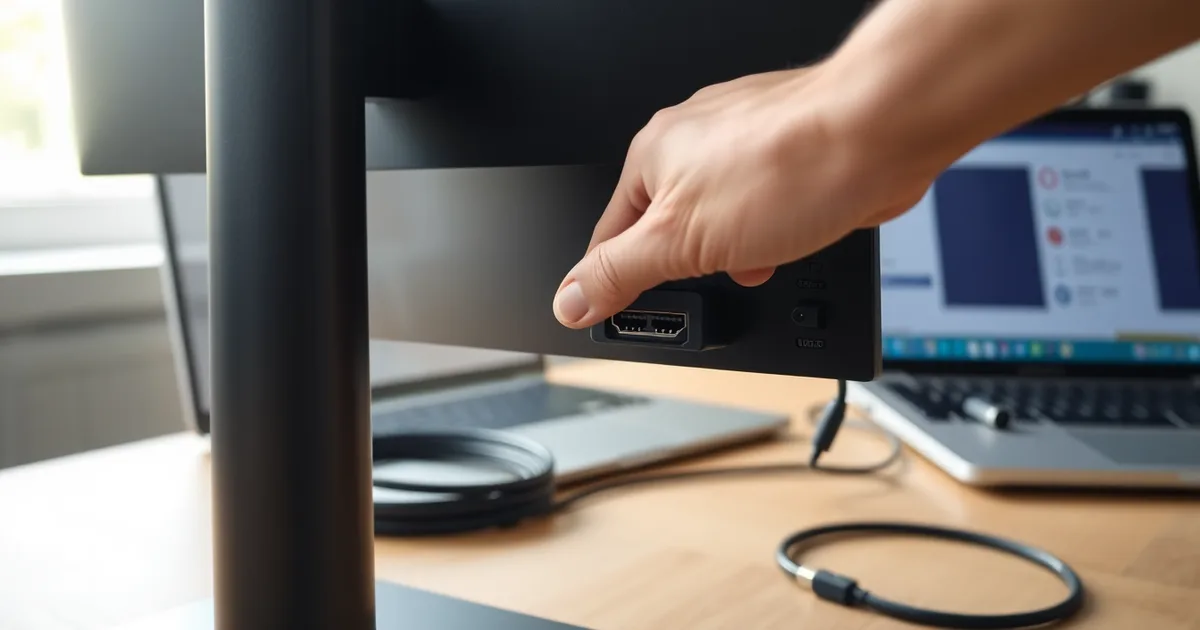
- Swap to a VESA-certified DisplayPort cable, or an HDMI cable explicitly marked "Ultra High Speed" (48 Gbps). Certification matters: the VESA logo means the cable was tested at full bandwidth, not just labeled. Costs $15-25.
- Shorten the run. Passive copper attenuates signal with length. A 3-meter DisplayPort cable at 4K 144 Hz is a coin flip; a 1-meter cable of the same rating usually is not. Test with the shortest cable you own, then work back up. Five minutes including the monitor power cycle.
- If you use an active optical cable (AOC), check direction. These are unidirectional: the source connector is marked "Source" or "PC" and must plug into the GPU, not the monitor. Reversing it produces exactly the flicker pattern you are chasing. Takes 10 seconds.
- Bypass any adapter, KVM, dock, or USB-C hub. Run GPU directly to monitor with the test cable. Docks add their own re-timing stage and are a common flicker source on laptops with Intel Iris Xe graphics. Two minutes.
- Toggle the input on the monitor OSD to force a fresh link negotiation, then watch for two minutes. Cable faults are load-dependent — they show up under motion, not on a static desktop.
- Still flickering? Force DisplayPort 1.2 in the monitor's OSD under DisplayPort settings. This drops the link to a bandwidth the marginal cable can carry, and it resolves many cases that survive a cable swap. Costs nothing.
Most guides tell you to update the GPU driver first. On modern systems that is backwards. Driver updates rarely fix link-training flicker because the fault is in the physical layer or the handshake, not the render path. Forcing DisplayPort 1.2 in the monitor OSD commonly solves what a driver update cannot, and it takes 15 seconds.
The failure mode to watch for: a marginal cable passes the swap test because the replacement is also marginal. If a shorter, certified cable eliminates flicker but the problem returns when you reinstall your original, you have confirmed the diagnosis. If flicker persists on a verified 1-meter VESA-certified cable at DisplayPort 1.2, the cable is exonerated and you move to VRR and refresh rate.
Cable bandwidth cheat sheet: what you need for 4K, 1440p, and 1080p
Bandwidth is a hard ceiling, not a suggestion. Push a link past what the cable can carry and the display scaler drops or repeats frames to keep sync, which you see as flicker, brief blackouts, or sparkle artefacts around high-contrast edges. Most people buy a cable rated for the resolution and ignore the refresh rate, which is where the maths actually bites: 4K at 144 Hz with 8-bit colour needs 25.92 Gbps of data rate, roughly 80% of DisplayPort 1.4's 32.4 Gbps ceiling. A DisplayPort 1.2 cable tops out at 21.6 Gbps and will fail that mode outright, even though it handles 4K at 60 Hz without complaint.
| Display mode | Data rate needed (8-bit) | Minimum cable spec | VESA / HDMI cert mark |
|---|---|---|---|
| 1920x1080 at 60 Hz | 3.20 Gbps | HDMI 1.4 (10.2 Gbps), any legacy DP cable | HDMI Standard, no DP cert needed |
| 2560x1440 at 144 Hz | 12.70 Gbps | DisplayPort 1.2 (21.6 Gbps) or HDMI 2.0 (18 Gbps) | DP 1.2 or HDMI Premium High Speed |
| 3840x2160 at 60 Hz | 12.54 Gbps | DisplayPort 1.2 (21.6 Gbps) or HDMI 2.0 (18 Gbps) | DP 1.2 or HDMI Premium High Speed |
| 3840x2160 at 120 Hz, 10-bit HDR | 40.10 Gbps | HDMI 2.1 (48 Gbps) only | HDMI Ultra High Speed |
| 3840x2160 at 144 Hz | 25.92 Gbps | DisplayPort 1.4 (32.4 Gbps), with DSC disabled | VESA DP 1.4 certified |
| 5120x1440 at 120 Hz (super ultrawide) | 22.10 Gbps | DisplayPort 1.4 (32.4 Gbps) or HDMI 2.1 | VESA DP 1.4 certified |
The 1440p at 144 Hz row is the one most readers should land on, because a $15 DisplayPort 1.2 cable from Cable Matters or Monoprice carries 21.6 Gbps and leaves real headroom at 12.70 Gbps. Buying DisplayPort 1.4 or an HDMI 2.1 Ultra High Speed cable for that mode is harmless but wasted money. The flip case is 4K at 120 Hz with 10-bit HDR: at 40.10 Gbps it consumes 84% of HDMI 2.1's 48 Gbps, so an 18 Gbps "4K compatible" HDMI 2.0 cable will flicker and you cannot fix it in software. If your monitor or GPU only exposes HDMI 2.0, drop to 4K at 60 Hz with 8-bit colour and the same cable behaves.
Certification logos matter more than the connector shape. VESA certifies DisplayPort cables and prints a DP 1.4 or DP 2.1 logo on the packaging, with the actual tested bandwidth listed; unbadged cables sold as "DP 1.4 compatible" are frequently rewired DP 1.2 stock. For HDMI, look for the Ultra High Speed hologram on the box, not the word "2.1" alone, since HDMI 2.1 marketing covers everything from 18 Gbps to 48 Gbps. Club3D and Cable Matters both publish the VESA test certificate number on their product pages, which is the closest thing to a guarantee you get before plugging in.
Is VRR causing your flicker?
Variable refresh rate works by letting the monitor's panel sit idle between frames until the GPU sends the next one. Above a certain floor—commonly 48 Hz on AMD FreeSync displays, though cheap VA panels sometimes bottom out nearer 60—the panel can hold a pixel charged long enough to display it cleanly. Drop below that floor and the pixel has to sit in its charged state for too long, so it leaks. On VA panels the leak is visible as a brightness pulse, and because the frame rate is bouncing around, the pulse is irregular. That is VRR flicker, and it looks almost nothing like the tearing or dropout you get from a bad cable.
The floor matters more than the spec sheet suggests. AMD's FreeSync Premium tier formally requires a minimum refresh rate of 120 Hz plus low frame rate compensation below 48 Hz, but plenty of monitors carry a FreeSync badge without LFC. If your card outputs 38 fps in a scene and the monitor's floor is 48, the panel is running out of sync range and the backlight compensation kicks in and out. Something as ordinary as a loading screen, a menu, or a CPU-bound city in a game can trigger it.
Testing takes two minutes and costs nothing. Open your GPU driver's control panel—NVIDIA Control Panel under Display > Set up G-SYNC, or AMD Software under Gaming > Display—and switch variable refresh off for that monitor. Then go into the monitor's own OSD and turn off FreeSync, AdaptiveSync, or whatever the vendor calls it there. Both ends have to be disabled; leaving one on is a common reason people conclude VRR was not the culprit. If the flicker stops entirely, it was the sync range.
If VRR was the cause, you have two options
The cheap fix is a frame cap. Set a limit in the driver or in-game a few frames above the monitor's VRR floor—50 fps for a 48 Hz panel, 65 for a 60 Hz one—and the panel never falls out of range. You lose the low end of the variable range, but you stop the flicker without giving up the smoothness VRR provides in the 60-144 fps band. Cap slightly above the floor rather than exactly on it; frame timing jitter means a 48 fps cap will still dip to 46.
If you are running an LG UltraGear or a similar VA panel and the flicker persists at high frame rates, the driver stack is the next suspect. NVIDIA's registry key DisableDynamicPstate, introduced in driver 551.23 in January 2024, reduces link-training flicker on RTX 40-series cards by stopping the GPU from dropping its memory clock aggressively between frames. It is not a VRR fix and it raises idle power draw by a few watts, but it is worth trying before you conclude the panel is faulty. And if none of this changes anything, the problem was never VRR—go back to the cable and the link training, because those account for the large majority of cases. A 2023 Puget Systems survey put cable replacement alone at 34% of resolved flickering reports.
Refresh rate mismatch: the silent flicker source
A refresh rate mismatch produces a flicker with a signature: it appears in bursts, roughly every few seconds, and it often shows up only when the desktop is idle or when a video or game is running in a window on the other screen. Windows sets each display independently, and so does the GPU driver, and the two do not always agree. Set 60 Hz in Settings > System > Display > Advanced display and then leave the NVIDIA Control Panel or AMD Software set to 144 Hz, and the GPU will keep renegotiating the link. Each renegotiation is a fraction of a second of unstable signal, which is what you see as a blink.
Open both places and make them match. On Windows 11, per-monitor refresh rate lives under Advanced display; on Windows 10 it is buried in Display adapter properties. In the NVIDIA Control Panel it is Change resolution > Refresh rate, and in AMD Software it is Display > Custom Resolutions or the per-display settings under Display. If the monitor reports 59.94 Hz rather than 60.00 Hz, that is not a mismatch, it is the NTSC-derived timing most panels actually run, and forcing 60.00 over DisplayPort can itself cause periodic dropouts on older Dell UltraSharp units — the U2720Q needed firmware M2T103 in March 2022 to stop link-training flicker at exactly this kind of timing edge.
The monitor's own OSD is where the mismatch hides most often. Many panels ship with DP 1.2 selected by default to maximise compatibility, and DisplayPort 1.2 caps at 21.6 Gbps — fine for 4K 60 Hz, not enough for 4K 144 Hz, which needs the 25.92 Gbps that only DP 1.4's 32.4 Gbps HBR3 link provides. Dig into the OSD's DisplayPort or HDMI settings and switch the version explicitly. LG UltraGear models in particular label this as "DisplayPort Version" and default it lower than the panel's rated maximum.
Multi-monitor: when the second screen blinks
Run a 144 Hz primary and a 60 Hz secondary on the same GPU and the flicker usually lands on the secondary display or on whatever window straddles both. The cause is the GPU's memory clock and link-training state switching between the two timings — NVIDIA's Dynamic P-State behaviour. If you have an RTX 40-series card on driver 551.23 or later (January 2024), the registry key DisableDynamicPstate under the display adapter's key is the documented mitigation. It costs a few watts at idle, which is the trade-off. On a laptop with Intel Iris Xe driving one panel and a discrete GPU driving the other, the honest answer is usually to run both displays off the same GPU, because the hybrid path introduces a second clock domain for no benefit here. If the two monitors must run at different rates, match them to the lower rate rather than living with the flicker — you will notice 60 Hz far less than you notice a screen blinking every four seconds.
When DisplayPort link training fails
Every time a DisplayPort cable is connected, or the monitor wakes from sleep, or the GPU changes resolution, the two ends run a negotiation called link training. The source proposes a lane count (1, 2, or 4) and a voltage swing and pre-emphasis level; the sink replies with a signal quality reading and the pair steps up or down until it finds a setting that survives the trip. On paper this takes a few hundred milliseconds. In practice, a marginal cable or a picky monitor can end up renegotiating every few seconds, and each failed attempt shows up as a black screen, not a flicker in the usual sense.
That distinction matters because it changes what you look for. VRR flicker is brightness instability on a live image. Link-training failure is the image disappearing completely for half a second to two seconds, coming back, and doing it again on a rough cycle—often worse after the monitor sleeps, worse at 4K 144 Hz than at 4K 60 Hz, and worse on the second or third display in a daisy chain. If you can time the dropouts with a stopwatch and they land in a repeating window, stop chasing the panel.
The fix is counterintuitive: give the link less work to do. Open the monitor's on-screen display, find the DisplayPort version setting—Dell puts it under Display; LG UltraGear models bury it in General, sometimes as "DP Version"—and force DisplayPort 1.2 instead of 1.4 or 2.0. At 21.6 Gbps, DP 1.2 cannot carry 4K at 144 Hz, so you will drop to 4K 60 Hz or 1440p at high refresh, but the link trains once and stays trained. A 4K 144 Hz 8-bit signal needs 25.92 Gbps, roughly 80% of DisplayPort 1.4's 32.4 Gbps ceiling, and running that close to the limit leaves no margin for a cable that measures badly at temperature or after a hundred mating cycles.
When downgrading the link is the wrong call
If you need 4K 144 Hz and dropping to DP 1.2 costs you the refresh rate you bought the monitor for, force the lower version anyway to confirm the diagnosis, then restore 1.4 and replace the cable with a VESA-certified DP 1.4 or DP 2.1 part from Monoprice, Club3D, or Cable Matters—certification is the only reliable signal at these lengths, since a 2 m passive cable that passes 4K 60 Hz can still fail 4K 144 Hz. On the software side, Dell shipped firmware M2T103 in March 2022 specifically to fix link-training flicker on the UltraSharp U2720Q, so check your model's support page before spending anything. NVIDIA's registry key DisableDynamicPstate, added in driver 551.23 in January 2024, reduces link-training dropouts on RTX 40-series cards by stopping the GPU from dropping the display engine into a low-power state mid-session; it costs a few watts at idle and is worth trying only if the OSD route fails.
How do I know if it's the monitor or the GPU?
Everything upstream of this point assumes the fault travels in one direction. Swapping hardware is how you prove it. The trick is changing one variable at a time, because a test where you replace the monitor and the cable tells you nothing you can act on.
Run these in order. Stop as soon as the flicker follows a component.
- Move the monitor to a second machine. Any laptop with a working DisplayPort or HDMI output will do. If the flicker follows the display, the problem is inside the monitor—its scalar board, its internal cable, or its firmware. Dell shipped firmware M2T103 in March 2022 specifically to fix link-training flicker on the UltraSharp U2720Q, so a persistent-flicker result is worth a firmware check before you write the panel off.
- Move your computer to a second display. If flicker appears on a monitor that was previously clean, the fault is at the source: the GPU, the driver, or the port you used.
- Swap the cable between the two tests. Use a known-good cable rated for your resolution. A 2023 Puget Systems survey found 34% of reported flickering cases were resolved by replacing the cable alone, which is the single most common misdiagnosis in this whole category and the reason cable swaps belong inside the differential, not before it.
- Change which port on the GPU you use. Multi-port cards do not always present identical link training behaviour per output. Moving a 4K 144 Hz panel from one DisplayPort to another on the same card has resolved flicker for people who had already ruled out the cable.
- Check GPU temperature under load. Sustained core temperatures above roughly 83°C on an RTX 40-series card, or a hotspot delta over 20°C from the core reading, will trigger clock and voltage drops that show up as flicker before they show up as a frame-rate drop. Log it with HWiNFO64 during a 20-minute session rather than eyeballing a single reading.
- Note the driver version and date. On NVIDIA hardware from the 551.23 driver (January 2024) onward, the registry key DisableDynamicPstate reduces link-training flicker on RTX 40-series GPUs. AMD's equivalent ground has shifted across Adrenalin releases on RX 7000 cards. Write down the exact build before you change anything, because you will want to roll back if the new one is worse.
- Test with the discrete GPU disabled, or on integrated graphics. Plugging into an Intel Iris Xe laptop port rather than a discrete card isolates GPU-side power management from everything else. If flicker stops on integrated graphics, you are looking at a GPU power-state or driver problem, not a panel problem.
The step people skip is the temperature and driver check, usually because they ran the two hardware swaps, got an ambiguous result, and jumped straight to replacing the monitor. Both swaps can come back clean if the flicker is intermittent and load-dependent. Log the GPU for twenty minutes at your actual workload before you conclude anything, and record the driver build. An intermittent fault tested for ninety seconds produces a confident wrong answer.
Advanced fixes: firmware, drivers, and registry tweaks
If you have already swapped cables, toggled VRR, and matched refresh rates, you are now in the territory where the fix lives in software the monitor never advertised. These five steps cover the cases that account for the remaining stubborn flicker: stale monitor firmware, GPU drivers with known link-training regressions, and power management settings that force the display link to renegotiate more often than it should.
- Flash the monitor's firmware over USB. Dell, LG, and Samsung all ship firmware updaters that run from Windows over a USB-B or USB-C cable. Dell's M2T103 release from March 2022 specifically fixed link-training flicker on the U2720Q, and LG has pushed equivalent patches for UltraGear models that flickered at 144 Hz on DisplayPort 1.4. Check the model's support page, download the updater, and follow the instructions to the letter — interrupting a firmware write can brick the monitor's scalar board.
- Update the GPU driver to a recent release. NVIDIA's 551.23 (January 2024) and AMD's Adrenalin 24.1.1 both shipped fixes for intermittent flicker on multi-monitor setups and DisplayPort hot-plug events. On Intel Iris Xe laptops, the equivalent is the Intel Arc & Iris Xe graphics driver from the Intel Driver & Support Assistant. Do a clean install rather than an upgrade — the "clean install" checkbox in NVIDIA's installer and AMD's factory reset option both wipe stale display profiles that can survive a normal update.
- Disable dynamic p-state on NVIDIA systems via the registry. The
DisableDynamicPstatekey underHKLM\SYSTEM\CurrentControlSet\Control\Class\{4d36e968-e325-11ce-bfc1-08002be10318}\0000tells the driver to hold the GPU at a fixed performance state instead of downclocking during idle. On RTX 40-series cards driving high-refresh panels, this reduces the link-training flicker that shows up as a brief black flash when the GPU ramps up. Set the DWORD to 1, reboot, and revert if you see no change — it costs idle power. - Force a specific DisplayPort version in the monitor's OSD. Many LG and Dell monitors default to "DP 1.4" but ship with "DP 1.2" or "DP 1.1" available in the menu. If your GPU and cable can only reliably sustain 21.6 Gbps, dropping the monitor to DP 1.2 mode forces the link to negotiate at a rate it can actually hold. You lose 4K 144 Hz (that needs the full 25.92 Gbps) but 4K 60 Hz works cleanly.
- Turn off HDCP when you are not watching protected content. HDCP re-authentication on DisplayPort can trigger a flicker every time the handshake expires. NVIDIA Control Panel, AMD Software, and most monitor OSDs expose an HDCP toggle. Turn it off for a diagnostic session; if the flicker stops, the handshake was your problem, not the panel.
- Disable "link training" retries in the monitor's service menu. On some Club3D and Cable Matters DP 1.4 adapters, the retry behaviour on a marginal link causes visible flicker rather than a clean black screen. Accessing the service menu varies by brand, and it can void your warranty — this is the last resort before RMA.
The step people skip is the firmware update, usually because they assume a monitor bought in 2024 shipped with the latest firmware. It did not. Dell, LG, and Samsung typically ship panels with firmware six to eighteen months old, and the flicker fixes are exactly the kind of thing that lands in a mid-cycle patch. Flash the firmware before you touch the registry — if the update alone fixes it, you avoid the idle-power penalty and the warranty risk entirely.
What if nothing works?
Once you have swapped cables, disabled VRR, pinned the refresh rate to something the link can actually carry, and updated firmware, the probability that you are looking at a hardware fault gets real. Puget Systems' 2023 survey put cable replacement alone at 34% of resolved flicker cases, and the sections above cover the bulk of what remains—but there is a residue that no software setting touches. A panel with a failing backlight driver, a scaler with a cracked solder joint, or a DisplayPort receiver that never trained cleanly at 4K 144 Hz on any cable you own is a return, not a fix.
If you bought the monitor in the last 30 days, stop troubleshooting and return it. Retail return windows in most markets are 14 to 30 days, and a flicker complaint is a valid return reason that costs you nothing but the trip. Beyond 30 days you are in warranty territory, which is a different and slower process. Check the coverage length first: Dell UltraSharp models typically carry three years, LG UltraGear gaming panels usually one to three depending on region, and many budget brands ship with 12 months. Panel defects—dead pixels, uneven backlight, flicker at native resolution on the bundled cable—are usually covered, but "flicker" is a claim manufacturers contest, so document it with a phone video at 240 fps if you can. Flicker that shows up on camera but not to the eye is still flicker, and it is still a defect.
The honest trade-off is this: if the flicker only appears at 4K 144 Hz and vanishes completely at 4K 120 Hz or 1440p 165 Hz, the monitor is probably fine and the link training implementation is weak. Some panels ship with marginal DisplayPort receivers that pass VESA compliance testing on the bench but fail in the real world with a 2-metre cable and a GPU that negotiates aggressively. In that case, buying the same model again gets you the same behaviour. A different model with a known-stable receiver—LG's UltraGear line and Dell's UltraSharp U-series have reasonably consistent link-training firmware across revisions—is the better spend, even if the spec sheet is slightly worse. Specs on paper do not flicker; link training does.
One last thing to check before you box anything up: confirm the fault follows the monitor, not the port. Move the display to a different GPU output, or to a second machine entirely. If it flickers on an Intel Iris Xe laptop over USB-C and on an RTX 40-series desktop over DisplayPort, the monitor is the common factor and the return is justified. If it only flickers on one machine, you have a host-side problem, and a new monitor will not solve it.
Frequently Asked Questions
Why does my external monitor flicker only when I move the mouse or scroll?
That pattern points to variable refresh rate flicker. VRR works by letting the panel refresh in step with the GPU's output, so when frame rate swings fast during a scroll or cursor movement, the backlight brightness shifts measurably and you see it as a pulse. It is worst on VA panels and in dark scenes.
Turn VRR off in the monitor's OSD, or in Windows under Settings > System > Display > Graphics, and set a fixed refresh rate instead. On NVIDIA cards the toggle is in the NVIDIA Control Panel under "Set up G-SYNC"; AMD calls it FreeSync in Adrenalin.
Can a bad HDMI cable cause screen flickering?
Yes. A cable that cannot sustain the bandwidth your resolution and refresh rate demand will drop frames or lose the link briefly, and you see that as flicker or a one-second blackout. The usual culprits are long passive cables, thin 28 AWG conductors, and old HDMI 1.4 leads sold as "high speed".
At 2560x1440 and 144Hz you need roughly 10.8 Gbps of payload, which means a Premium High Speed (18 Gbps) cable at minimum. Shorter is better: a 2 m certified cable fails far less often than a 5 m one at the same spec.
Why does my monitor flicker at 144Hz but not at 60Hz?
Because 144Hz needs about 2.4 times the bandwidth of 60Hz, so a cable or port that is marginal at 60Hz crosses the failure threshold at 144Hz. Link training between GPU and monitor also gets stricter at high refresh rates, and each failed retry shows as a blink or a sparkle of noise on screen.
Drop to 120Hz in the display settings. If the flicker stops, the cable is the problem, not the panel. Replace it with a VESA-certified DisplayPort 1.4 or HDMI 2.1 lead rated for your exact resolution and rate.
How do I stop my external monitor from flickering when plugged into a laptop?
Update the GPU driver first, and install the laptop vendor's version rather than the generic one from Intel, AMD or NVIDIA; OEM builds include the display-link fixes that generic drivers skip. Then disable VRR and set a fixed refresh rate on the external display.
Next, stop the machine from switching power profiles. On many laptops, dropping to battery or entering a low-power state renegotiates the display link and causes a visible flicker. Set the power plan to High Performance while docked and check the dock's own firmware, since Thunderbolt and USB-C docks carry their own update channel.
Is monitor flickering a sign of a failing monitor?
Rarely. Cable faults, VRR behaviour, refresh-rate mismatches and link training failures account for the large majority of flicker reports, and all of those are upstream of the panel. A genuinely dying monitor usually shows dead pixels, banding or a failing backlight instead.
Test before you replace anything. Plug the same monitor into a different source with a different cable at 60Hz. If it is clean, the monitor is fine. If it flickers on two sources with two cables, then start considering a hardware fault.
Does DisplayPort 1.2 cause flickering?
Only when you exceed its ceiling. DisplayPort 1.2 carries 21.6 Gbps of raw bandwidth, about 17.28 Gbps of usable data, which is enough for 2560x1440 at 165Hz but not for 4K at 144Hz with 10-bit colour. Push past that and the link degrades into flicker or dropouts.
Counter-intuitively, forcing DP 1.2 in the monitor's OSD sometimes fixes flicker on a DP 1.4 connection, because it skips the more fragile 1.4 link-training handshake. Try it if a firmware update has not helped.