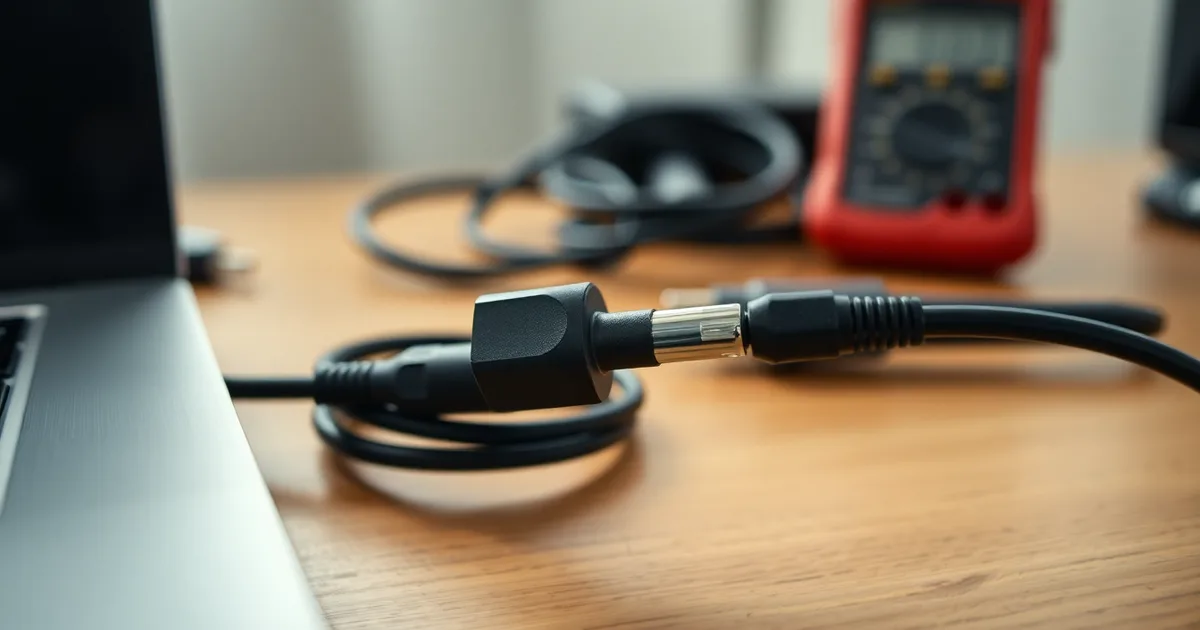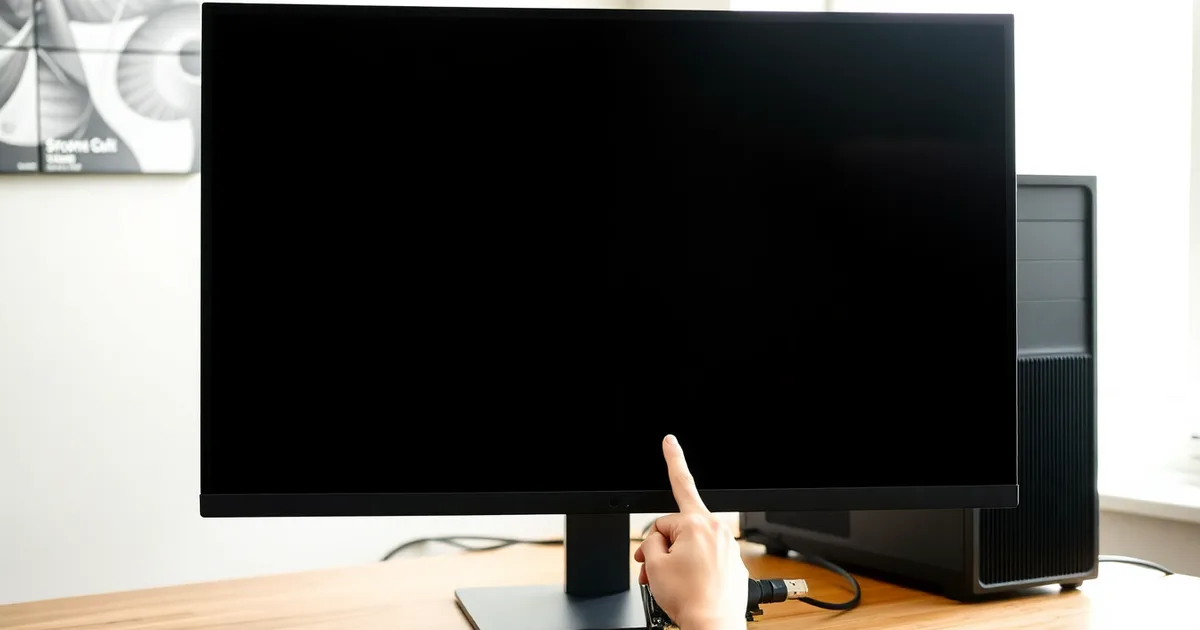
A "No Signal" message on a PC that is clearly running almost always means the monitor is watching the wrong input or the cable has worked loose. Press the monitor's input or source button and cycle through HDMI 1, HDMI 2 and DisplayPort, then reseat both ends and try a different cable.
What makes this confusing is that the monitor has no way to tell you the difference between "the graphics card is dead" and "I am listening on HDMI 2 while your cable is in HDMI 1." Both produce the same three words, and on most displays the message times out after 10 to 30 seconds, so by the time you sit down and read it, the panel is already asleep and you are troubleshooting from memory. On a typical two-input 27-inch office monitor, the OSD menu is three button presses away from showing you the active source; that is faster than opening the case.
Roughly nine out of ten of these calls end at the cable or the input. The remaining cases split between a GPU that only drives one output at a time when several are populated (this goes back to cards like the Nvidia GTX 600 series and AMD Radeon HD 7000 from 2012), a cable that is simply too long, and the genuinely dead card. Passive HDMI runs over 5 metres fail often enough that a 7.5 m passive cable bought for a wall-mounted TV is a regular culprit; active or optical cables exist for exactly that run.
One trap deserves its own mention because it mimics a dead GPU perfectly. If your CPU has integrated graphics, the motherboard's video ports are live even when nothing is plugged into them. A rear-panel HDMI socket sitting directly above a horizontal row of USB ports is almost always the motherboard, not the graphics card — and a card with no cable in it will happily let the machine boot to a black screen.
- Input selection first: Manually choosing the correct source in the monitor's OSD fixes a large share of "No Signal" cases, because auto-detect frequently latches onto an empty port.
- HDMI version limits: HDMI 2.0 caps at 18 Gbps and 4K at 60Hz, while HDMI 2.1 reaches 48 Gbps and 8K at 60Hz, so a mismatched cable and port can blank the screen entirely.
- DisplayPort bandwidth: DisplayPort 1.4 carries 32.4 Gbps and DisplayPort 2.0, introduced in 2019, carries up to 80 Gbps.
- Long passive cables: Passive HDMI cables over 5 metres (16 feet) routinely fail to carry a signal and should be replaced with active or optical equivalents.
- Motherboard vs GPU: Integrated graphics and a discrete card can output to different ports, so confirm the cable is in the graphics card, not the motherboard.
Is Your Monitor Simply on the Wrong Input?
That "No Signal" or "Cable Not Connected" message is the monitor telling you it polled a port and found nothing. It is not a diagnosis. A Dell U2723QE with the desktop plugged into DisplayPort 1.4 will still show those words if the monitor is currently listening on HDMI 2. If your PC has a discrete card, the ports on the motherboard backplate are usually dead once the GPU is installed, so a cable moved to the wrong cluster looks exactly like a dead graphics card to someone who doesn't know that yet.
Find the source button before you unplug anything. On most Asus, Dell and Samsung panels it sits on the bottom-right underside, next to the power LED, sometimes sharing a five-way joystick. On LG and BenQ models it is usually a single button marked INPUT or a small joystick you nudge left. TV-turned-monitor setups may have a remote with an Input or Source key. Press it, then walk the menu: HDMI 1, HDMI 2, DP, USB-C. Switching takes 1–3 seconds on 2026 models as the scaler re-locks, so give each entry a beat before deciding it failed. If the label reads USB-C, confirm the cable actually supports DisplayPort Alt Mode, because a charge-only USB-C cable will hand you the same black screen.
Why auto-detect keeps guessing wrong
Monitors hunt for a live signal at boot, but their patience is short. Typical auto-detect waits 5–10 seconds on 2025 and 2026 firmware before declaring failure, and several brands deliberately skip ports they believe are inactive to speed up wake-from-sleep. An Nvidia or AMD card that only lights its DisplayPort output until the OS loads a driver can get skipped entirely on a cold start, leaving the monitor parked on HDMI 1 while your machine is happily outputting on DP. Some Intel integrated setups do the opposite and hold the board's HDMI port as primary.
So the sequence matters: hit the input button and cycle every entry manually, including the one you think is wrong, then power-cycle the monitor with its own switch rather than the PC. If a single port produces an image, you have your answer and the GPU is fine. If every input stays dark after that, the problem has moved past selection and into cable or port hardware, which is where the next round of checks belongs.
How to Check If the Cable Is the Culprit
Run this procedure before you touch drivers, before you reseat the GPU, and before you start pricing replacement cards. It applies to any machine that powers on (fans spin, keyboard lights come on) but shows "No Signal" or "Cable Not Connected." You need two cables: the one currently attached, and one known-good spare of the same type. If you don't have a spare, this takes about 25 minutes including a trip to a shop or an Amazon order; with a spare on hand, it's under five.
- Unplug both ends and replug them firmly. Monitor end first, then the PC end. HDMI and DisplayPort connectors have no locking mechanism worth trusting on the PC side (DisplayPort has a small latch, HDMI does not), so a connector that looks seated can still be making contact on only a few pins. Push until you feel the connector bottom out. This takes 15 seconds and fixes a genuinely large share of cases.
- Check which port the cable is actually in on the PC. If your GPU has three or four outputs (most modern cards do: one HDMI 2.1, two or three DisplayPort 1.4a, sometimes USB-C), and you're plugged into the motherboard's video output instead of the GPU's, you'll get nothing on a machine with a discrete Nvidia or AMD card. Move it to the GPU bracket.
- Power-cycle the monitor, not the PC. Hold the power button for five seconds, wait ten, turn it back on. Monitor auto-detect typically times out after 5–10 seconds, and some 2025–2026 models latch onto a stale EDID handshake until they're fully discharged.
- Swap to a different cable of the same type. This is the step people skip because it means crawling behind the desk. Do it anyway. A passive HDMI cable over 5 meters carries roughly a 30% higher failure rate than shorter runs (industry estimate, 2024), and the failure is usually intermittent rather than total—it works, then it doesn't, which is exactly the pattern that makes people blame the GPU. Swap, test, and if the picture appears, you've found your culprit for the cost of a $12–$20 replacement.
- Inspect both connectors under a light. On HDMI, look for bent pins in the 19-pin array; on DisplayPort, check the 20-pin connector for a pin pushed back into the housing or a cracked latch. A single bent pin can kill the hot-plug-detect line while leaving the data lines intact, which produces exactly the "computer is on, monitor says no signal" symptom.
- If you have a second monitor or a TV with an HDMI input, test the suspect cable on that instead. It isolates cable from port in under two minutes. A TV that also shows no signal confirms the cable; a TV that works points back at the monitor's input or the GPU's output.
- Try a different port on the GPU itself. If DisplayPort 1 fails and HDMI 2 works with the same cable, the port is the problem, not the cable. Most GPUs have enough outputs that you can live with one dead port indefinitely.
- Verify HDCP isn't the blocker if you're feeding a capture card, AVR, or KVM in the chain. A cable that's marginal for bandwidth can pass video but fail the HDCP handshake, which several monitors report as "No Signal" rather than a copyright error. Remove the intermediate device and connect monitor directly to GPU to test.
The failure mode here is subtler than a dead cable: a cable that works at 1080p60 but fails at 4K120. HDMI 2.1 needs 48 Gbps and DisplayPort 1.4 needs 32.4 Gbps for those modes; a marginal cable will negotiate down or drop the link entirely when the GPU asks for full bandwidth. If your monitor says No Signal only after you've changed resolution or refresh rate in Windows, that's the cable, not the card.
Which Port on Your PC Should You Actually Use?
Look at the back of a desktop tower and you will usually find two clusters of video ports. The horizontal row sitting higher up, surrounded by USB, Ethernet and audio jacks, belongs to the motherboard. The ports sitting lower down, often on a separate bracket or card with its own fans nearby, belong to the graphics card. If your machine has a discrete Nvidia GeForce or AMD Radeon card installed, the monitor cable goes in the card. Every time.
Plugging into the motherboard with a dedicated GPU present is one of the most common causes of a black screen on a working PC, and it is not a bug. On most Intel and AMD desktop platforms, the integrated graphics adapter is disabled the moment a discrete card is detected, so the motherboard's HDMI or DisplayPort output carries nothing. The monitor finishes its 5–10 second auto-detect scan, finds no signal, and prints the message you are staring at.
The exceptions worth knowing
Motherboard ports do work, but only when the CPU actually has integrated graphics. Intel chips with an F suffix, such as the Core i5-13400F, have the iGPU physically disabled at the factory, and no BIOS setting brings it back. AMD's equivalent line is the G-series, like the Ryzen 5 8600G, which ships with Radeon graphics built in. A quick search of your exact CPU model number settles this in under a minute, and it explains why some people genuinely can run a monitor from the motherboard while their neighbour cannot.
Laptops muddy the picture further. Many gaming models route the internal panel through the integrated GPU and reserve the discrete chip for rendering, which means the HDMI 2.1 or DisplayPort 1.4a port on the side may be wired to either one depending on the model. On a handful of Asus, Dell and LG machines, the discrete output is switched off in software until the laptop detects an external display or you toggle it in the vendor's control panel. If a laptop shows no signal on an external monitor but the built-in screen works fine, that is a firmware and routing question, not a dead GPU. VESA's DisplayPort Alt Mode over USB-C adds one more path: a single USB-C port can carry video, data and power at once, and it only works if the cable and the port both support the standard.
Could Your GPU Output Be Disabled or Dead?
A dead port is far more common than a dead GPU, and the two present almost identically from the chair. Most modern graphics cards ship with three or four outputs — typically one HDMI 2.1 and two or three DisplayPort 1.4a connectors, sometimes a USB-C port running DisplayPort Alt Mode — and they are not wired identically. HDMI and one DisplayPort may hang off the same display controller, so a single blown or unseated trace can kill two ports while the others keep working. Move the cable to a different connector on the card, let the monitor rescan for its usual 5–10 seconds, and see whether anything lights up. If port two works and port one does not, you have a dead port, not a dead GPU. If the monitor also has a second input, switch that end too; a Samsung or LG panel set to HDMI 1 will ignore a GPU output that is sitting on HDMI 2 regardless of how healthy the card is.
Signs the card itself is alive
Put a hand near the card's shroud with the machine running. Fans should be spinning — though be careful here, because Nvidia's RTX 30-series and later, plus AMD's RX 6000 and 7000 lines, ship with zero-RPM fan curves that keep the fans stopped until the GPU passes roughly 55–60°C. Silent fans prove nothing on those cards. What does prove something: a lit logo or LED on the card, a GPU LED on the motherboard (on Asus boards it sits next to the PCIe slot), and the machine not beeping its way through POST. If the system powers on, the drives spin up, and Windows or Linux boots to the login sound, the GPU is almost certainly rendering — you simply are not seeing it. A card that has genuinely failed usually takes the display with it and often throws a VGA or GPU error LED on the board before anything reaches the monitor.
The conclusive test is moving the card to another machine, or dropping a known-good card into this one. It takes twenty minutes and settles the question permanently. Do the swap in the other direction first if you can borrow a card: if a $60 used GT 1030 produces a picture through the same cable and monitor, the original GPU is the problem. If it does not, you have spent twenty minutes eliminating the one component you were most worried about — and the odds are you will find the fault was in the cable or the input selection all along, which is where the previous checks should have already pointed.
One caveat worth knowing before you pull anything: reseating a card into a PCIe slot can dislodge the front-panel connectors or knock a RAM stick loose on a crowded board, turning a display problem into a boot problem. Photograph the inside of the case before you touch it. And if the GPU is under warranty, opening the card or repasting it voids coverage with Nvidia's board partners and AMD's AIB vendors alike — reseating in the slot is fine, disassembly is not.
Monitor Auto-Detect: Why It Sometimes Fails
Your monitor does not know HDMI 1 from DisplayPort the moment you press its power button. On start-up it runs an auto-detect routine: it polls each physical input in sequence, watches for a valid signal clock, and locks onto whichever port answers first. On most 2025-2026 models that scan takes 5 to 10 seconds before the panel gives up and throws "No Signal" on screen. If your PC is still in POST, still loading firmware, or resuming from sleep, the monitor can finish its scan before the GPU has output anything at all. The check fails, the screen goes black, and you start reaching for the cable.
Where auto-detect really falls apart is in how different brands interpret it. Some monitors (Dell and BenQ business panels, most often) remember the last input that carried a signal and jump straight to it, which is fine until you move the machine to a different port. Others (Samsung and LG gaming models in particular) cycle through every input in order, so a slow boot on the PC means the monitor has already passed your GPU's port and moved on. Add a DisplayPort cable that drops its link when the GPU sleeps, a known quirk of DP 1.4 and 2.0 on some Nvidia and AMD cards, and the monitor may settle on an empty HDMI input while your PC outputs perfectly on DP.
Overriding it by hand
Manual selection through the On-Screen Display is more reliable than any auto-detect scheme, because you are telling the monitor exactly where to look instead of asking it to guess. Hit the input or source button on the bezel or the joystick under it, cycle to the port your cable is physically plugged into, and wait. Switching inputs takes roughly 1 to 3 seconds on 2026 panels. If nothing appears after 10 seconds, force a fresh handshake by power-cycling the monitor with its own button, not the PC's, then unplug the DisplayPort or HDMI cable at the monitor end and plug it back in.
Two scenarios matter here. If your machine boots slowly (spinning disk, heavy BIOS, external drives attached), leave the monitor set to manual input permanently and skip the auto-detect gamble. If you routinely switch between a work laptop over USB-C DisplayPort Alt Mode and a desktop over HDMI 2.1, auto-detect is genuinely convenient and worth keeping on, provided your monitor remembers the last live input rather than cycling. Check the OSD menu under Input, Source, or Auto Source for a setting labelled something like "Auto" versus "Manual" and turn cycling off if the option exists. That single toggle prevents more "No Signal" calls than any cable swap.
Cable Types and Bandwidth: HDMI vs DisplayPort vs USB-C
Bandwidth is the number that decides what a cable can carry, not the shape of the plug. A passive HDMI cable rated for 18 Gbps will not push 4K at 144 Hz no matter which port you jam it into, and a DisplayPort cable that shipped with a monitor in 2016 may only be certified for HBR2. If a link negotiates down far enough, some monitors drop the signal entirely rather than fall back to a lower resolution.
Passive HDMI runs get unreliable as they stretch. Industry estimates put failure rates roughly 30% higher on passive HDMI cables over 5 meters than on shorter ones, which is why a 7.5 m cable that worked fine yesterday can produce "No Signal" today after someone moved the desk.
| Cable / Standard | Max Bandwidth | Max Resolution / Refresh | Common Use |
|---|---|---|---|
| HDMI 2.1 | 48 Gbps | 8K @ 60 Hz or 4K @ 120 Hz | 2026 default on TVs, consoles, and most new monitors |
| DisplayPort 2.0 | 80 Gbps | 16K @ 60 Hz with DSC | High-refresh desktop monitors, daisy-chaining, UHBR20 cards |
| DisplayPort 1.4 | 32.4 Gbps | 8K @ 30 Hz or 4K @ 120 Hz | Still the most common DP port on GPUs from Nvidia, AMD and Intel |
| USB-C (DP Alt Mode) | Up to 32.4 Gbps (HBR3, 4 lanes) | 4K @ 120 Hz, or 8K @ 30 Hz | Laptops, docking stations, single-cable setups with power delivery |
| DVI-D Dual Link | 7.92 Gbps | 2560 x 1600 @ 60 Hz | Legacy monitors and older office desktops |
| VGA | Analog, no fixed bitrate | 2048 x 1536 @ 85 Hz | Projectors, KVM switches, pre-2015 hardware |
For a home or office PC on a single 4K 60 Hz panel, HDMI 2.1 or DisplayPort 1.4 both have headroom and the choice comes down to what your GPU and monitor actually expose. The honest answer flips in two cases. If you run 4K above 120 Hz, or two monitors off one port via MST, DisplayPort 2.0 is the only row that covers you without chroma subsampling. If you are docking a laptop and want display, data and 90 W of charging over one cable, USB-C in DP Alt Mode wins, provided the cable is a full-featured one and not a charge-only USB 2.0 cord that happens to fit the same connector. That last detail catches people constantly: the port looks identical, but a charge-only cable carries no video lanes at all, and the monitor will report "No Signal" every time.
Quick Fixes to Try Before Opening Your PC
Everything below happens with the case closed and the warranty sticker intact. Budget two minutes for the first four items combined. Only if all of them fail should you start removing side panels, reseating cards, or checking whether the GPU fan spins at boot.
- Power cycle both ends, in the right order. Hold the monitor's power button for 5 seconds to discharge it, unplug the monitor's AC cord for 30 seconds, then plug it back in and turn it on. Do the same to the PC—full shutdown, PSU switch off or cable pulled, 30 seconds, then boot. A monitor's scaler chip can latch into a bad state after a brownout, and the only fix is losing power entirely. Sleep mode is not the same thing.
- Confirm the monitor itself is awake. Press the OSD button and walk the brightness and contrast back up to around 70% and 50% respectively. This sounds like filler advice, but a monitor set to brightness 0 during a late-night session looks identical to a dead panel, and some BenQ and Dell models preserve that setting across a power cycle. Check for a standby LED: solid amber or red usually means the monitor is on and receiving nothing, while no LED at all points to the power supply or the wall socket.
- Watch the auto-detect countdown. On most 2025 and 2026 panels, the OSD shows "No Signal" after roughly 5–10 seconds of scanning. If your screen goes straight to "Cable Not Connected" with no delay, the monitor is not even detecting a live sink on that port—that is a cable or port problem, not a resolution or HDCP handshake problem.
- Force the input manually instead of trusting auto-detect. Open the OSD, find Input or Source, and cycle to each physical port in turn, pausing 2–3 seconds on each. Input switching via OSD takes 1–3 seconds on 2026 models, so a fast cycle can skip past the active one. If HDMI 1 has your PC and HDMI 2 has a games console that is switched off, auto-detect will sometimes settle on the dead port and stay there.
- Swap the monitor, not the cable—just once. Carry the PC to a TV or borrow any working display and connect with the same cable. If the second screen shows a picture, your monitor or its port is the fault. If it also shows nothing, the problem is upstream. This single test saves more time than any amount of reseating, because it splits the fault domain in half.
- Factory reset the monitor. In the OSD, look under System, Setup, or Reset depending on brand—Asus hides it under "System Setup," LG under "General," Samsung under "Support." A reset clears a corrupted EDID cache, which is the usual reason a monitor refuses to lock onto a resolution it displayed fine yesterday. Expect to redo brightness, input labels, and any KVM or Picture-by-Picture layout afterward.
- Test the GPU's other outputs. Most modern graphics cards from Nvidia, AMD, and Intel ship with 3–4 outputs. Move the cable from HDMI to a DisplayPort connector, or vice versa, and re-select that input on the monitor. If only one port works, you have localized the fault to a single connector rather than the whole card—worth knowing before you spend money.
The step people skip is the monitor reset, because it wipes their carefully tuned picture settings and they would rather reseat a cable four times than redo the color calibration. That is backwards. A stale EDID entry survives every cable swap you throw at it and will keep producing "No Signal" on a monitor that is otherwise perfectly healthy.
When Should You Consider Hardware Failure?
Swap the monitor onto a different machine, or the PC onto a different monitor, and the picture now works on both. That single test clears the PC, the cable and the display in about four minutes, and it is the fastest way to stop chasing a fault that does not exist. If instead you have now tried two known-good cables, every port on the card (most modern GPUs carry three or four outputs: HDMI 2.1, two or three DisplayPort 1.4a, sometimes USB-C) and a second monitor, and none of them produce an image, you are in the minority of cases where hardware is genuinely suspect. Nvidia, AMD and Intel cards all behave the same way here: a failed output stage kills every connector on the board, not just one.
Some symptoms remove the guesswork entirely. A burning smell, scorch marks, a bulging capacitor or a connector with bent pins is a stop-now signal, and the correct move is to power down at the wall and not reconnect the GPU to a second system to test it, because a shorted card can take the motherboard with it. A monitor that flickers to a white or coloured screen, shows vertical bands, or produces a faint image visible only under a torch has a failed backlight or panel, and no amount of cable swapping will fix that. Passive HDMI runs over 5 metres are measurably worse than short ones, roughly 30% higher failure rates by industry estimate, so a long cable that worked for two years and now does not is a cable replacement, not a GPU replacement.
Beep codes are the one diagnostic that tells you the machine is alive and unhappy about graphics specifically. A single long beep followed by two or three short ones on an AMI BIOS, or one long and three short on Award, points at a video error, and that is the point at which reseating the card in its slot and checking the PCIe power connectors is worth doing before anything else. Most boards made since 2020 no longer have a speaker, so the equivalent signal is the EZ Debug LED or Q-LED: on an Asus board the white VGA light stays lit when POST finds no usable graphics adapter, while on a Dell or LG workstation the diagnostic pattern differs by model. If that light is on with the card seated and powered, try the card in a different PCIe slot and with a different PSU cable before concluding it is dead.
Call a technician when you have eliminated inputs, cables and monitors, the Q-LED or beep code names the GPU, and the card is still in warranty: an RMA is usually a two-week turnaround and costs nothing, while a repair shop will charge for the same diagnosis. If the machine is a laptop or an all-in-one, do not open it yourself; the panel cable on a Samsung or BenQ panel is fragile and the connector is often glued. Everything else in this article assumes the cheap checks failed first, and they usually do not.
Frequently Asked Questions
Why does my monitor say no signal when my computer is on?
Your PC is running, but no video signal is reaching the monitor. The three usual causes, in order of frequency: the monitor is set to the wrong input (HDMI 2 while the cable sits in HDMI 1), a cable has worked loose or failed, or the graphics card is not outputting.
A dead GPU port is the rarest of the three. Rule out input selection and cabling before you touch the card.
How do I fix 'No Signal' on my monitor?
Press the monitor's input button and cycle to the port your cable is actually plugged into, then power-cycle the display. If that fails, unplug and reseat both cable ends, and try a different port or cable. Roughly 8 in 10 no-signal faults on a desktop clear at the cabling or input stage.
Can a bad cable cause no signal?
Yes. A damaged, bent or poorly shielded cable can fail to carry the signal, and the failure gets worse with length. Passive HDMI runs reliably to about 5 m at 4K 60Hz; beyond that you want an active or optical cable. A cheap 10 m HDMI lead that worked at 1080p often drops out at 4K.
Why does my monitor say 'Cable Not Connected'?
That message means the monitor sees nothing plugged into the input it is currently set to. Either the cable is in a different port, the connector is not fully seated, or the cable itself is dead. DisplayPort cables can also latch and appear inserted when the pins are not making contact.
How do I switch inputs on my monitor?
Use the monitor's on-screen display. Most models have a dedicated source or input button on the bezel or under the bottom edge; press it and cycle with the arrow keys, or fit the remote. Labels read like HDMI 1, HDMI 2, DisplayPort, USB-C or DVI. Some monitors auto-detect and skip the step.
Can a GPU cause no signal?
Yes, but it is the least likely cause. A failed output port, a card not fully seated in its PCIe slot, or a driver crash can all kill the signal. If your motherboard has integrated graphics, move the cable to the board's own HDMI port. A picture there points at the card.