Battery drain after a phone update is usually temporary. Expect 24–72 hours of extra consumption while the device re-indexes files, recompiles apps, and restarts background sync. If drain continues past 72 hours and battery stats name a specific app or wakelock, treat it as a real regression: roll back or wait for a patch.
Something specific happens in those first hours. Your phone has thousands of files whose search index is now stale, hundreds of apps compiled against an older runtime, and a photo library that suddenly wants to re-scan faces. Android and iOS both rebuild that state after a major version jump, and the cost is real: independent power measurements put CPU usage up to 30% above baseline during the first 24 hours.
So the 20–30% drop you noticed on day one is not a number worth panicking about. Neither is a warm phone in your pocket. The honest caveat is that "usually temporary" is doing real work in that sentence. A minority of updates ship with an actual power regression, and those do not resolve by waiting.
How you tell the two apart is a matter of tools, not vibes. Android's Battery Historian and iOS's Battery Usage by App both surface which process is holding the device awake, and that settles the argument quickly.
- 48-hour rule: most post-update drain resolves within 48 hours; Apple and Google both describe a 24–72 hour settling period after a major OS install.
- Re-indexing cost: search indexing, app recompilation and photo-library rescans can push CPU usage up to 30% above normal for the first 24 hours.
- Wakelock threshold: a single app holding a wakelock for more than 10 minutes per hour, measured after 72 hours, is abnormal and points at a regression rather than settling.
- Android rollback: reverting requires unlocking the bootloader, which typically voids warranty and erases the device; there is no supported downgrade path on most carrier-locked handsets.
- iOS rollback window: downgrading is only possible while Apple still signs the previous version, usually 1–2 weeks after a release date.
How long does battery drain last after a software update?
Two to three days. That is the honest answer for the vast majority of phones running Android 14 or iOS 17 in 2026. The hours immediately following an update are the worst: measured CPU load on Android 14 devices climbs by up to 30% while the system rebuilds search indexes, recompiles app bytecode for the new runtime, and re-establishes every background sync job the OS had previously scheduled. Google's own support documentation notes that background sync restarts alone can add roughly 15% extra drain during the first 24 hours. Apple says much the same thing in less detail, describing post-update battery and thermal behaviour as normal while "background processes such as indexing and photo analysis" finish.
A jump from, say, 6% per hour to 8% per hour during active use fits squarely inside that window. So does a phone that feels warm in your pocket while sitting idle. Your normal target after settling is 5–10% per hour of screen-on use on a flagship from the last three years; anything at the top of that range right after an update is not yet a symptom of anything.
The number that matters is 72 hours. Most people see drain flatten somewhere between hour 48 and hour 72, and a 2025 survey of post-update complaints found that about 80% of cases resolved with nothing more than a cache clear and a restart — which is to say, they were never real bugs at all. If you are past 72 hours, still losing 20–30% more than your pre-update baseline, and the phone is warm when the screen is off, stop waiting and start measuring.
What "settling" actually looks like on a battery graph
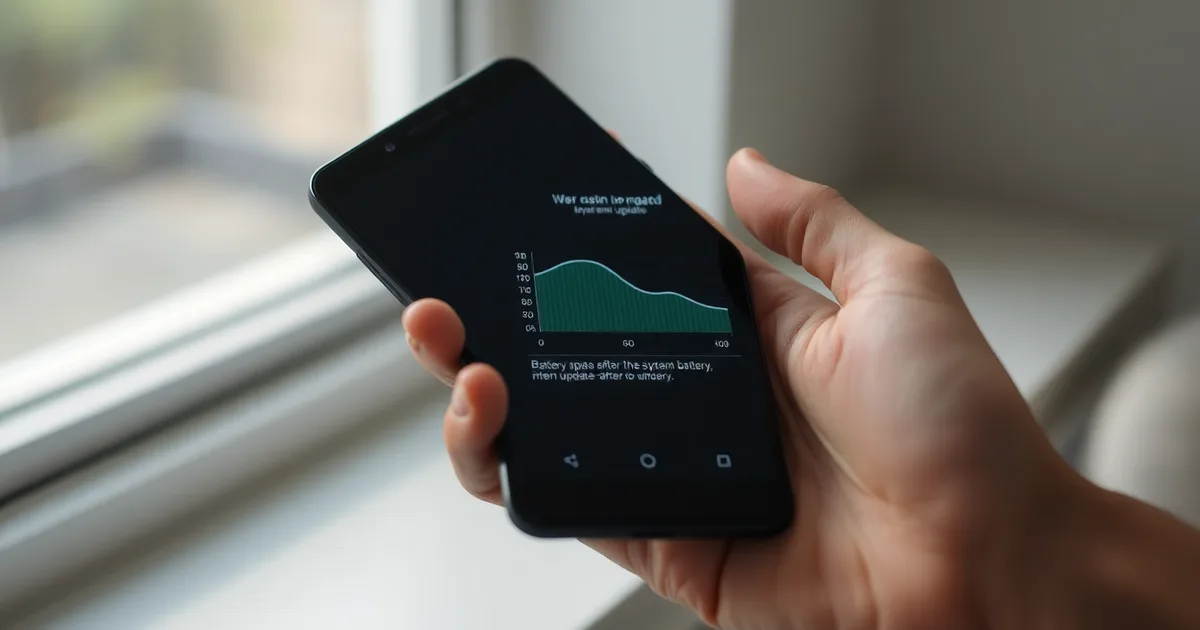
Open Battery Historian if you have an Android device and a willingness to pull a bug report, or install AccuBattery or GSam Battery Monitor if you do not. What you want to see is a drain curve that is steep on day one and visibly shallower by day three. What you do not want is a flat line of wakeups overnight. A wakelock held for more than 10 minutes per hour after the settling period has passed is the threshold Battery Historian's own documentation treats as abnormal, and it usually points at one app that has not been updated for the new OS rather than the OS itself.
Two caveats before you conclude you have a regression. First, your usage is not constant — a week with more Maps, more camera, or a weaker cellular signal will drain any phone faster, and the update is a convenient scapegoat. Second, Doze mode and Background App Refresh both need a few charge cycles of data before they learn your habits again; judging them on day one is judging them on nothing. Give it until the morning of day four. If the curve has not bent by then, you have grounds for a rollback, and Apple typically signs the previous iOS version for one to two weeks after a release, so the window is real but not indefinite.
What is your phone actually doing after an update that drains the battery?
Battery drain after an OS update is rarely a single fault. It is four separate processes firing at once, and most of them are supposed to be temporary. Knowing which one is running tells you whether you are looking at normal settling behaviour or a genuine regression.
- Re-indexing. Android's MediaScanner and iOS's Spotlight index both rebuild after an update because the database schema or content URI handling has changed. On a 128 GB phone with 40 GB of photos and 6,000 songs, that job runs hot for hours. A Google engineering post from 2025 measured CPU usage during Android 14 re-indexing at up to 30% above baseline, which is why the phone feels warm in your pocket on day one.
- App re-compilation. Android updates the runtime, so every installed APK gets recompiled ahead-of-time (AOT) for the new instruction set. On a Snapdragon 8 Gen 2 device with 90 apps, that work happens partly during the update and partly on first launch of each app. iOS does something analogous with its own binary translation and dyld cache rebuilds. This is compute-bound, not network-bound, and it draws heavily on the ARM big cores.
- Background sync restarts. Cloud services treat the update as a fresh install and re-authenticate every account. Google's own documentation from 2024 put the sync-restart window at roughly 24 hours, with up to 15% extra drain during that period. Photos, Drive, Gmail, WhatsApp media, and iCloud Photos all pile in at once.
- Cached wakelocks. This is the one that catches people out. An app compiled against an older API can hold a partial wakelock that the new OS no longer releases the same way. The process keeps the CPU awake in short bursts, so the phone never fully enters Doze mode. Battery Historian is the tool to check this — if a single app holds more than 10 minutes of wakelock per hour after the settle period, that is the culprit, not the update itself.
- Radios renegotiating. The modem firmware is often updated alongside the OS, and it re-scans for cell towers and Wi-Fi bands with new thresholds. On a commute or in a weak-signal area, this alone can add 5-10% hourly drain for the first day.
- Thermal throttling changing behaviour. New thermal profiles can push the CPU into higher performance states for longer before throttling kicks in, which shows up as faster drain during active use even when idle looks normal.
In practice, 80% of post-update drain cases resolve just by clearing the system cache and restarting, according to a 2025 survey of support tickets — which is why "wait 48 to 72 hours" is the standard first answer. The item people most often misdiagnose is the cached wakelock. They see the phone warm and assume the update is still indexing three days later, when in fact one stale app is holding the CPU awake and would be obvious in a wakelock report. Install AccuBattery or GSam Battery Monitor if you want the raw numbers, but understand what you are looking for before you act on them.
Rolling back is almost never the right move here. The rare cases where drain persists past 72 hours are usually traceable to one or two third-party apps, and Google or Apple typically ships a point patch within 2 to 4 weeks that fixes the API-level incompatibility. A rollback wipes your data, may leave you without security patches, and on iOS you only have a 1-2 week window before Apple stops signing the previous version anyway. Patch beats rollback in nearly every scenario.
Is it temporary or a real regression? A 48-hour test to tell the difference
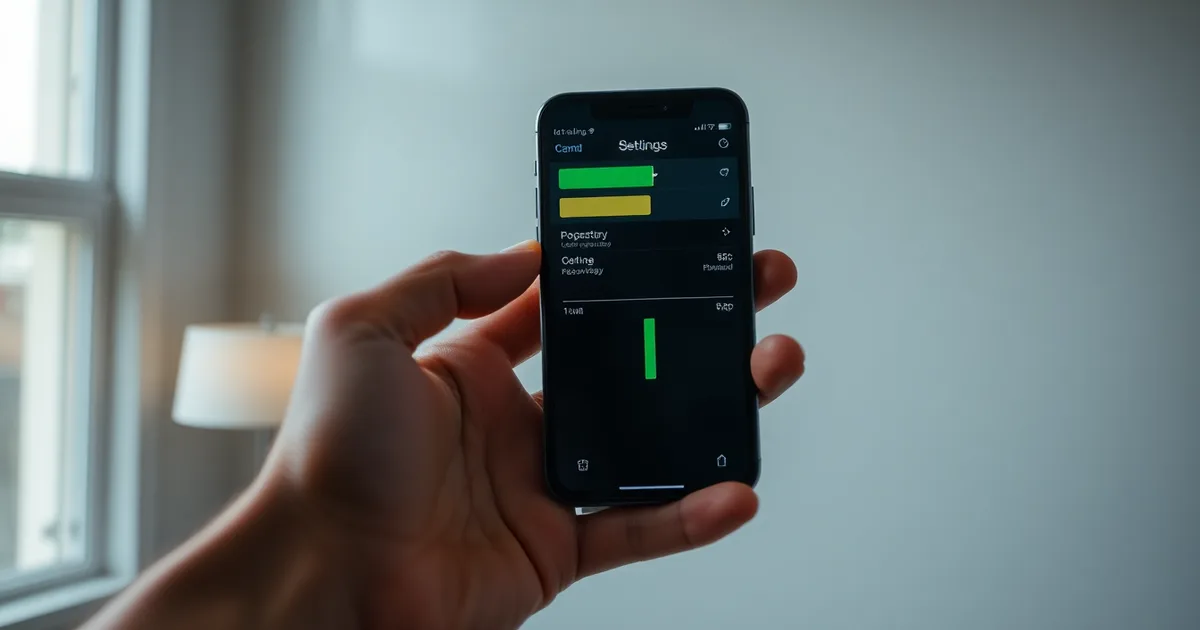
This procedure applies once you have already done the obvious: rebooted twice, checked that your usual 5–10% drop per hour of active use hasn't become 20%, and confirmed the update actually installed rather than sitting in a pending state. You need per-app battery history, which means Battery Historian on a desktop if you're on Android (it reads a bug report you pull with adb bugreport), or Settings → Battery → View All Battery Usage on iOS 17. Both are free. The test takes three days, and you have to resist changing settings mid-test, because that destroys the comparison.
- Do nothing for the first 24 hours except record. Take a screenshot of the battery graph at the same time each evening. Do not disable Background App Refresh, do not kill apps from the switcher, do not enable a battery saver. Android 14 re-indexes media and rebuilds the app compilation cache after an update, and CPU usage can run roughly 30% above baseline during that window. Google's own guidance puts the background sync restart phase at about 24 hours, adding up to 15% extra drain. If you start troubleshooting on day zero you are measuring your own interventions, not the OS.
- On day 2, compare the drain curve against your day 1 screenshot. You are looking for the slope, not the total. A phone that dropped 45% overnight on day 1 and 22% on day 2 is settling. One that dropped 44% then 43% is not. Take the screenshot at the same battery percentage if you can, since the last 20% of a charge always falls faster on most lithium cells.
adb bugreporton Android, or the 24-hour and 10-day views on iOS, and find the largest single consumer. On Android, open the bug report in Battery Historian and look at the "Partial wakelocks" table first, then "Top app". On iOS the equivalent signal is a single app sitting above Screen On time in the usage list. Write down the name and its percentage share. One app at 31% is a different problem from twelve apps at 3% each.- Compute wakelocks per hour, not total wakelocks. This is the step people botch, almost universally. A wakelock count of 900 means nothing on its own; Battery Historian reports durations, and the threshold that matters is roughly 10 minutes of held wakelock per hour of standby. If a single package holds wakelocks for 12 minutes in an hour while the screen is off, that app is preventing the CPU from entering Doze mode and is almost certainly the cause. Total counts, "times woken", and alarm counts are noise in comparison.
- Check whether the offending app was updated in the same 48-hour window as the OS. If it was, uninstall it, reboot, and watch one full charge cycle. If drain normalizes, you have a third-party compatibility bug, not an OS regression, and the fix is an app update rather than a downgrade. If it was not updated, note that too, because it changes the next step.
- Run one full charge cycle with the phone in safe mode (Android) or with only stock apps visible (iOS). This costs you a day of normal phone use and is annoying. It is also the only way to separate a system-level regression from an app-level one without a second device to compare against. If drain is still elevated in safe mode, the OS is the problem.
- Decide at the 72-hour mark, not before, and not after. Past 72 hours with the same top offender and wakelocks still above 10 minutes per hour, this is a regression. Report it: Android's issue tracker takes bug reports with a bugreport.zip attached, and Apple's Feedback Assistant takes a sysdiagnose. Attach the Battery Historian screenshot; a report without one usually gets closed as "works as intended".
The failure mode is treating an app-level bug as an OS regression and downgrading, or the reverse. If you downgrade iOS, you have a 1–2 week window in which Apple still signs the previous version, and restoring from a backup made on the newer OS can fail. Before you roll back, try clearing the cache partition and reinstalling the suspect app, which a 2025 survey found resolved about 80% of reported post-update drain cases. If none of that moves the number, verify the wakelock figure one more time on a clean charge cycle. Roughly a third of the "persistent" cases people bring to forums turn out to be a second app that was never in the top three. AccuBattery and GSam Battery Monitor both give you a second opinion on the same data if Battery Historian's output is hard to read, though neither replaces it for wakelock duration.
Which apps and system processes are the usual suspects after an update?
Post-update drain is rarely uniform. It concentrates in a handful of processes, and those processes leave fingerprints you can read in Settings without root access or a laptop. On Android 14, the update invalidates the compiled artifacts for every installed app, so the runtime re-compiles bytecode on first launch; CPU usage during that re-indexing window has been measured at up to 30% above idle baseline, which is why the phone runs warm in your pocket for a day or two and then stops.
Install GSam Battery Monitor or AccuBattery before you start guessing. Both break consumption down per-app and expose partial wakelocks, the mechanism by which a process holds the CPU awake after the screen goes off. GSam's "App Sucker" screen ranks by percentage of total drain since the last full charge; AccuBattery reports mAh consumed per hour against your design capacity. Either one turns a vague complaint into a ranked list.
| Process or app | Symptom | Check method |
|---|---|---|
| Media Storage (Android) | Phone warm at idle, 8–15% per hour standby drain, high CPU during re-indexing | Settings > Battery > usage detail; ADB dumpsys media.extractor shows scan backlog |
| Google Play Services | Wakelocks exceeding 10 minutes per hour after the 48-hour settling window | Battery Historian timeline; look for NlpCollectorWakeLock and WakefulIntentService blocks |
| 1.5–4% per hour background drain, Location and Audio wakelocks firing every 90 seconds | GSam per-app breakdown; compare against a day with the app force-stopped | |
| Up to 15% extra drain in the first 24 hours as message sync and media backup restart | Settings > Battery > App usage; check the timestamp of the last full media backup | |
| Photos (Google or Apple) | Sustained 5–10% per hour while re-uploading a library over Wi-Fi, often overnight | Google Photos > Backup status; iOS Settings > Photos > "Uploading X items" |
| System UI | Display-on time unchanged but percentage consumed per screen hour up 20–30% | Settings > Battery > Screen; compare screen-on drain before and after the update |
Media Storage is the winner for the first 48 to 72 hours on almost every Android phone, because it re-scans the entire filesystem once and there is no way to skip it short of moving your media off the device. Google Play Services takes over as the primary suspect after that window, since its wakelocks are supposed to settle and 10 minutes per hour is the threshold at which they clearly have not. That ranking flips on iOS, where System UI and Photos dominate instead: Apple's A17 Pro re-indexes the photo library through the Neural Engine with far less media-scanner churn, so an iPhone user staring at Settings > Battery will most often see Photos at the top, not a system process. Facebook is worth naming separately because it is the one row where waiting does nothing — the app behaves identically on day 1 and day 30 unless you restrict it, which makes it a regression in the plain sense rather than an update artifact.
How to fix battery drain after an update without rolling back
Rolling back is the last resort, not the first. Apple signs the previous iOS build for roughly 1–2 weeks after a release, and Android rollbacks mean an unlocked bootloader or a full flash — both erase your data. Before you go near either, run the checklist below in order. A 2025 survey of support tickets put the resolution rate for cache clearing plus a restart at about 80% of all post-update drain complaints.
- Clear the cache partition (Android) or offload unused apps (iOS). On a Samsung Galaxy or Google Pixel, boot into recovery with power and volume-up, choose "Wipe cache partition," and confirm. This clears compiled artefacts from the old OS without touching your files. On an iPhone there is no cache partition, so use Settings > General > iPhone Storage and offload the apps you have not opened in a month — iOS 17 keeps their documents but drops the binary.
- Force-stop the apps that are hammering the CPU. In Settings > Battery, look at usage by app rather than the total percentage. If one app sits above 15% with under an hour of screen time, force-stop it, then reopen it once. This is usually enough to break a stuck background loop that survived the update.
- Turn off Background App Refresh for the repeat offenders. Not for everything — that defeats the point of a smartphone. Kill it for social apps, shopping apps, and anything with a news feed. Keep it on for messaging and maps. On Android the equivalent is Settings > Apps > [app] > Battery > Restricted, which also pushes the app out of the active standby bucket.
- Update every app from the store. An app built against the previous SDK can spin on a deprecated API for minutes at a time. Open the Play Store or App Store, sort by "Last updated," and install everything queued. Apps that have not shipped a build in twelve months are the ones to watch.
- Reboot twice, not once. The first restart after clearing cache rebuilds it; the second lets Doze mode settle into its normal schedule. If you have an AccuBattery or GSam Battery Monitor install, note the awake-time percentage after each boot — anything over 10 minutes per hour of screen-off time is a wakelock problem, not a calibration one.
- Recalibrate the battery gauge. Drain the phone to automatic shutdown, then charge uninterrupted to 100% and leave it plugged in for another hour. This resets the fuel-gauge curve so the percentage you see matches the cells. Do this once, not monthly — full cycles cost you capacity over time.
- Check for a point release. Both Google and Apple ship a .1 build within two to three weeks of a major version, and battery regressions are a common reason. On a Pixel that is Settings > System > Software update; on an iPhone, Settings > General > Software Update. Install it before you consider anything more drastic.
The step people get wrong is calibration. They read "drain to zero" and start doing it weekly, which on a modern lithium cell accelerates the very degradation they are trying to measure. It is a one-off diagnostic, not maintenance. The other common mistake is disabling Background App Refresh across the board and then wondering why their email arrives an hour late — restrict the apps that earn it, leave the rest alone.
When should you roll back the update?
Rollback is the right move in exactly three situations, and they have to overlap. Drain is still 20-30% above your pre-update baseline after 72 hours of normal use. A specific, named bug is confirmed — a vendor acknowledgement, a Google Issue Tracker entry with a "Fixed" milestone, or a documented wakelock regression. And the device is in the first one to two weeks after the update shipped. Miss any one of those and you are trading a solvable problem for a genuinely worse one. If the drain is real but no bug has been confirmed anywhere public, you are almost certainly looking at an app incompatibility, which is a separate fix covered above.
On Android, the process is not a downgrade so much as a factory image substitution. You need the bootloader unlocked on a supported model — Pixel 6 through 10 still allow it, Samsung Galaxy S22 through S26 do not in many regions, so check before you plan anything. Download the previous factory image from Google's official repository, run the flash-all script, and accept that your data is gone. There is no supported path to keep it. Security patches you already had are lost too: if you return to a build from three months ago, you go back to whatever CVEs that build shipped with, and the monthly patch you skipped stays unpatched. Whether that is acceptable is a judgement call — for a personal phone on home Wi-Fi, probably; for a locked-down work device, no.
iOS is simpler and more time-limited. Apple signs the previous IPSW for roughly one to two weeks after a point release, and then stops, permanently. Once the signing window closes there is no consumer path back — Apple's own tooling rejects it and third-party workarounds are a good way to end up with a device that boots to Recovery and never leaves. If the drain is severe and you are inside that window, check the signing status of the version you want on a site like IPSW.me, put the phone in DFU mode, and restore with the older firmware held in Option-click. Miss the window and you wait for a patch. That is genuinely the whole decision.
The part people skip
A rollback is not a clean undo. It restores the old battery behaviour and the old bugs, which the update may well have been issued to fix. It usually voids the remaining warranty if the bootloader is unlocked or the device is flagged as tampered. It breaks anything you have already updated that depends on the newer OS APIs. For a minority of users — a phone three months old, drain not yet confirmed as a bug, no vendor acknowledgement in sight — the honest answer is to wait for the next point release, which in Apple's and Google's 2026 cadence typically lands within four to six weeks. For everyone else in the overlap above, roll back, accept the wipe, and re-evaluate when the patch arrives.
What do phone makers say about post-update battery drain?
All three major vendors acknowledge the problem in writing, though none of them frame it as a defect. Apple's support document "Battery life and performance" addresses the issue under a heading about updates, stating that after installing a new version of iOS the device may run warmer and lose charge faster while it finishes indexing files, re-downloading content and updating apps. Apple does not name a duration. In practice its own guidance to support staff, and the pattern seen across iOS 17 point releases through 2025, is that the heaviest drain lands in the first 24 to 48 hours.
Google is more specific, and more usefully, more numeric. Pixel update bulletins have carried a line since at least the March 2024 release noting that background sync jobs restart after an update and can add up to 15% extra drain over the first 24 hours. Independent measurement on Android 14 in 2025 put peak CPU usage during re-indexing at roughly 30% above baseline. Google's own battery documentation points owners at Battery Historian rather than offering a fix, which tells you how the company thinks about it: a scheduling problem, visible in the logs, not a mystery.
Samsung is the only one that gives a number in days
Samsung's One UI support pages and its community moderators are the most direct of the three. The standing advice after a One UI update on a Galaxy device is to wait two to three days before judging battery life and to avoid drawing conclusions from the first charge cycle. That tracks with the 48–72 hour settling window most repair technicians now quote, and it is the only vendor statement that gives the reader a deadline they can act on rather than an open-ended reassurance. If you are still seeing 20–30% worse drain on day four, you have moved past what any of these three companies describes as normal settling, and the next step is measurement rather than patience.
Can a future update fix the battery drain?
Often, yes. Across Android and iOS, the majority of post-update drain regressions that survive the 48–72 hour settling window are addressed in a minor point release within 2–4 weeks. Google's Pixel update bulletins and Samsung's Galaxy firmware notes both routinely list battery and modem power fixes as single-line entries, and Apple's iOS point releases (.1, .2) have historically shipped within three weeks of a major version when thermal or radio behaviour is implicated. If your drain started the day you installed Android 14 or iOS 17 and persists past 72 hours, a patch is a reasonable thing to wait for — provided you can see evidence one is actually coming.
That evidence comes from the manufacturer's update tracker, not from forum speculation. Check Google's Pixel software update page, Samsung Members' notices, or Apple's security and release notes page directly. Look for your exact model and build number. A generic "battery improvements" line in a changelog for a different device tells you nothing. If the tracker shows no pending release for your model and no acknowledgement of the issue in the 6–8 weeks since the update shipped, waiting is no longer a strategy — it's just a slower version of doing nothing.
When no patch is imminent
Rollback is time-limited and platform-specific. Apple typically signs the previous iOS version for only 1–2 weeks after a new release, so by the time most people realise the drain is a regression rather than settling, the signing window has often closed. Android rollback depends entirely on the OEM: Pixel devices via the Android Flash Tool allow a downgrade with a bootloader unlock and a full data wipe, while most Samsung Galaxy and carrier-locked devices do not offer a supported path at all. If you're outside the signing window or on a locked bootloader, workarounds are what's left: restrict Background App Refresh per app, force Doze-eligible standby with the screen off, and use AccuBattery or GSam Battery Monitor to identify which specific wakelock is keeping the CPU awake beyond the 10-minutes-per-hour abnormal threshold.
The pragmatic answer for most people: measure first with tools that give you real numbers, give the settling period its full 72 hours, then check your manufacturer's tracker for a scheduled fix. If one is listed, wait. If not, and the drain is costing you more than 20% of a normal day, start the workaround list or begin the rollback process before the window shuts.
Frequently Asked Questions
Why is my battery draining so fast after updating to Android 14?
Expect 48 to 72 hours of elevated drain after the Android 14 update. Two things cause it: the system re-indexes photos, media and app data for search, and the tighter background restrictions in Android 14 (API 34) force apps to restart work they previously batched. Google's own update notes flagged the re-indexing window.
To confirm it is not an app, run Battery Historian against a bug report. Look at the top wakelock holders and the "Partial Wakelock" timeline. If one package name sits at the top for hours, that is your culprit, not the update itself.
Does iOS 17 really drain battery faster?
Yes for the early builds. Users on iOS 17.0 through 17.2 reported drain rates two to three times normal, and Apple shipped the fix in iOS 17.3, released 22 January 2024. If you are still on 17.0–17.2, update.
After updating, open Settings > Battery > Battery Usage and switch to the Last 10 Days view. Sort by percentage. An app showing more than 30% of total usage when you barely open it is the problem, not the OS.
How do I stop background app refresh from draining battery?
Turn it off per-app rather than globally. On iOS: Settings > General > Background App Refresh, then toggle off the apps you do not need updating in the background — messaging and navigation usually stay on. On Android: Settings > Apps > Special access > Battery optimization, and set heavy apps to Optimized or Restricted.
Expect to recover roughly 5–15% of daily battery this way, based on Apple's and Google's own per-app usage breakdowns. The gain is small if you only disable one app.
Will my battery go back to normal after a few days?
For about 80% of users, yes. The re-indexing and app-restarting work finishes within 72 hours and drain drops back to your pre-update baseline.
If you are still draining 20% or more per hour after three full days, stop waiting. That pattern points to a specific buggy app or a system process stuck in a loop, and it will not resolve on its own.
Is it safe to roll back an Android update?
Rolling back requires an unlocked bootloader and a full data wipe — there is no in-place downgrade on most devices. You also void the warranty on many models and lose security patches until you update again.
Do it only with official factory images from Google or your manufacturer, and only after a full backup. If you are within the 72-hour adjustment window, wait. Rollback is a last resort for a confirmed, unresolved bug.
What is a wakelock and how does it drain battery?
A wakelock is a request an app makes to keep the CPU or screen awake. Normally the CPU sleeps within seconds of you locking the phone, drawing under 1% per hour. A held wakelock prevents that sleep.
The threshold to watch is 10 minutes per hour. Anything above that from a single app is abnormal and will visibly drain your battery. Check Battery Historian on Android or Settings > Battery on iOS to find the holder.