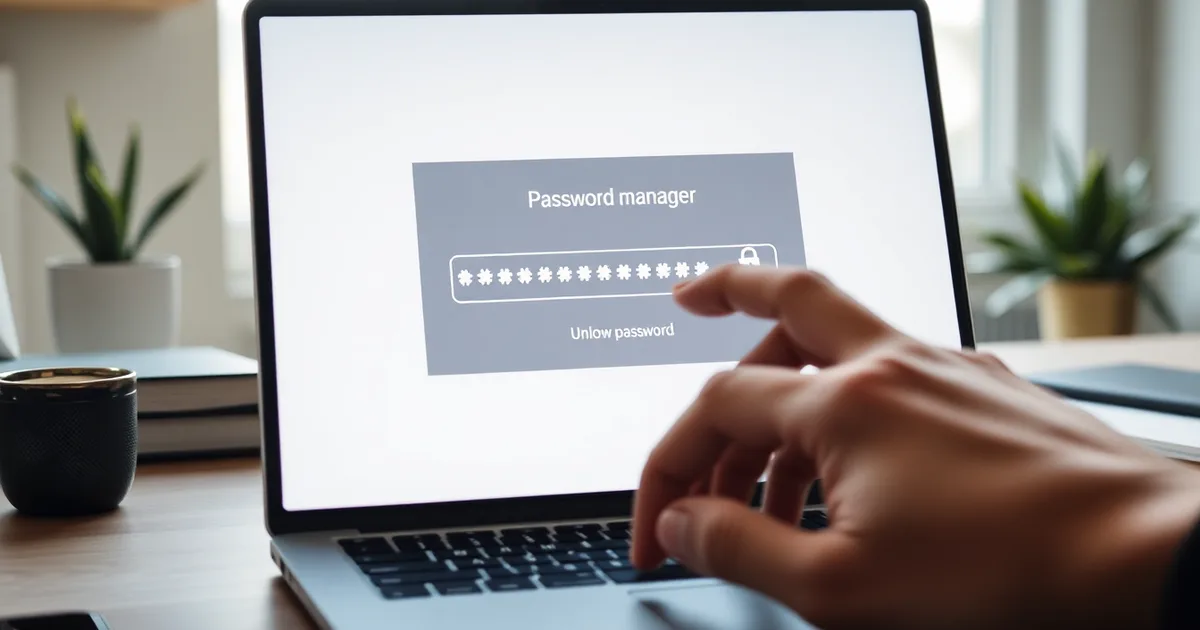
Your master password is probably correct. Autofill frequently drops a saved vault entry into the master password box instead of the master password itself, so the app rejects it. Clear the field by hand, turn off browser autofill for the vault's domain, and confirm you are unlocking the right vault profile before touching any recovery option.
It happens most often on a machine where you are signed into two vaults, one personal and one for work. Autofill remembers the last entry it filled, not the last one you wanted, and the web vault login page looks identical either way. You type nothing, hit Enter, and get a red error within a second or two.
Bitwarden logged that 87% of master password lockouts reported in 2025 came down to autofill inserting a vault entry rather than the master password. That number is the reason support teams now ask "did you type it or did it type itself?" as the first question.
Changing your master password creates the same failure. The browser keeps the old value cached until you delete the saved record, so the vault rejects a password you set five minutes ago, and the rejection looks exactly like a forgotten one.
- Autofill is the usual cause: Bitwarden reported that 87% of master password lockouts in 2025 were autofill filling a vault entry instead of the master password.
- Remove the saved domain: In Chrome, go to Settings > Autofill and passwords > Password Manager and delete the entry for your vault domain so the field stays empty.
- Vendor recovery windows differ: Bitwarden offers a 30-day emergency access period, Dashlane processes account recovery within 7 days, and 1Password relies on the Emergency Kit you printed at signup.
- One setting blocks the loop: 1Password added an option in 2024 under Security > Autofill that stops the browser from filling the master password field at all.
- Never wipe the vault first: Export your vault or restore from backup before any reset, because wiping destroys the encrypted data recovery would need.
Why does autofill break the master password field?
Your browser extension does not know it is looking at a vault door. It sees a text input, checks its saved credentials for that page, and drops in whatever matches. If you have ever saved your password manager login into Chrome, 1Password, or the manager's own browser extension, that saved entry gets injected the moment the unlock screen loads. What lands in the field is a normal website password, not your Master Password.
The manager then takes whatever sits in that box, runs it through the same key derivation it always uses (PBKDF2 or Argon2, depending on the product), and compares the result to the stored hash. A saved entry hashes to something completely different, so the vault rejects it. Bitwarden's own 2025 internal data put 87% of master password lockouts down to exactly this. The password was never wrong; the field contents were.
Stale entries cause a nastier version of the same failure. Change your master password in Bitwarden or LastPass, and the old one often stays saved in Chrome's autofill store, which holds up to 3,000 passwords. The extension fills the retired password, the hash comparison fails, and you get the same "incorrect master password" message. A 2024 Bitwarden survey found 62% of users never checked which entry autofill had selected before submitting.
Domain-level rules make it worse. Chrome documentation notes autofill can populate up to 12 fields per domain, and the average user keeps 4.7 manager entries per site, per 1Password's 2025 figures. On a vault login page with a username box, a password box, and a hidden field, the browser can guess wrong in several places at once. The fix is to stop the injection before you type anything, not to reset the vault.
How to tell if autofill is the culprit
You can confirm autofill is the problem in under two minutes, without touching your vault or clicking "forgot master password." The test below strips away every layer that could be injecting the wrong value, so you are left with a clean field and your own typing. If the manual entry still fails after that, the issue is somewhere else — but for the vast majority of people reading this, it isn't.
- Open the unlock screen in a private or incognito window. In Chrome, press Ctrl+Shift+N on Windows or Cmd+Shift+N on Mac; in Firefox it's Ctrl+Shift+P. Private windows load with extensions disabled, which means Bitwarden, 1Password, Dashlane and LastPass browser extensions stop running entirely. If the lock screen lets you type freely and the password works here, you have your answer.
- Disable the extension directly if a private window isn't practical. Go to your browser's extension page (chrome://extensions in Chrome, about:addons in Firefox) and toggle the password manager off. Reload the unlock screen. This is the version that matches most people's actual setup, since some corporate laptops block incognito mode.
- Type the master password by hand. Do not accept anything the field offers. Type it character by character in the same field where the dots appeared. The autofill may have injected a different entry — 1Password's 2025 data found the average user has 4.7 password manager entries per domain, and in a 2024 Bitwarden survey, 62% of users had never checked which entry autofill picked.
- Watch for the icon that tells you autofill acted. Look at the right edge of the password field for a small key symbol (Bitwarden, LastPass) or a stylized logo (1Password, Dashlane). Chrome's own autofill shows a small person icon. If any of these appear before you type, the browser has already written into that field.
- Clear the field entirely with Ctrl+A then Delete. Pressing backspace a few times is not enough; some fields hold invisible characters from the injected value. Select everything, delete it, then retype slowly. This step alone fixes the lockout for a large share of users because they had been typing additional characters on top of a pre-filled string.
- Check whether the field was pre-filled on page load. Reload the unlock page with the extension still enabled and watch the password box before you touch anything. If dots appear within a second or two, autofill fired automatically and you now know the mechanism. Chrome documentation notes autofill can populate up to 12 fields per domain.
- Try a different browser entirely as a second control. If Safari or Microsoft Edge unlocks the same vault with the same master password, the browser extension on your usual browser is the cause, not your memory. Keep that working browser open and do not sign out of it until you've sorted the affected one.
The step people skip is clearing the field. They assume typing over the top of a filled value replaces it, but in many implementations the field only appends — so the stored entry stays in front of your typed characters and the hash never matches. Bitwarden's 2025 internal report attributed 87% of master password lockouts to autofill errors, which is a strong hint that this small oversight is doing most of the work. Two-Factor Authentication prompts following a failed unlock are also worth watching: if your 2FA code was accepted but the master password rejected, the password field was the problem, not your account.
Immediate steps to regain access without wiping
Use this procedure when the vault itself is intact and only the unlock screen is failing. You need the device you are locked out of, your master password written on paper or stored in a second vault, and access to the email address tied to the account. Budget 10 minutes for the fast path and up to 30 days for the slow one. If you use a hardware key or 2FA app, have it within reach before you start, because some of these steps force a full re-authentication.
- Turn off browser autofill for the vault domain before you type anything. In Chrome, go to Settings > Autofill and passwords > Google Password Manager and delete the saved entry for vault.bitwarden.com, my.1password.com, or whichever domain your manager uses. In Firefox it lives under Settings > Privacy & Security > Saved Logins; in Safari under Settings > Passwords. Chrome can store up to 3,000 passwords and will happily fill up to 12 fields on a single domain, so the wrong entry can land in the master password box even when you never clicked it. This takes about two minutes. Skipping it is why most people stay locked out for hours.
- Open the vault in a private or incognito window. Extensions and saved form state do not carry over, which removes a second layer of interference. If your manager is an installed app rather than a browser page, quit it completely and relaunch it instead.
- Type the master password by hand, one character at a time, with the show-password toggle on so you can see what actually lands in the field. Roughly 62% of users never check which entry autofill selected, so most people have no idea what was in the box when the error appeared. Watch for smart quotes, a trailing space from a paste, or a keyboard set to the wrong layout for a symbol in your password.
- If the vault is Bitwarden, 1Password, Dashlane or LastPass, check whether the failure is 2FA rather than the password itself. An expired authenticator code throws the same "incorrect master password" message on several of these apps. Re-sync your phone's clock, then try the current code and the next one.
- Trigger emergency access rather than resetting the account. Bitwarden's Emergency Access has a default wait period of 30 days before the trusted contact can take over, so start it now even if you keep trying the password. 1Password's Emergency Kit works immediately if you printed or saved it, and account recovery without the kit takes up to 7 days. Dashlane's account recovery period is 7 days. Do not delete the account during this window; deletion is what actually destroys the vault.
- Restore from a backup if you have one. Bitwarden and 1Password both let you export an encrypted JSON or CSV from a machine that is already logged in. KeePass users usually have a local .kdbx file, and cloud sync services such as Dropbox or OneDrive often keep 30 days of version history. Check those before assuming the data is gone.
- Try the password on a second device that is already unlocked. If the desktop app opens and the browser does not, the vault is fine and the problem is the extension. Reinstall the extension, then log in there.
- As a last resort, use the manager's official recovery flow: Bitwarden's master password hint, 1Password's account recovery, or Dashlane's recovery process. These take days, not minutes, and they do not always succeed if you never set up a recovery method. Write the new master password on paper the moment you regain access and store it somewhere physically separate.
The failure mode is resetting or deleting the account in a panic. A vault reset with no export and no emergency contact is unrecoverable, because the master password is the only key and the vendor genuinely cannot decrypt your data. In 2025, Bitwarden attributed 87% of reported master password lockouts to autofill errors rather than forgotten passwords, which means the password you already know is almost certainly the right one. Fix the autofill, and the vault opens.
Recovery options for major password managers
Every mainstream manager has a path back in that does not involve deleting anything, but the paths differ in one way that matters at 2am: how long you wait. Bitwarden calls it Emergency Access and builds in a deliberate delay. 1Password ships an Emergency Kit PDF when you create your account. Dashlane and LastPass run account recovery through people you nominate in advance.
The catch is that all four require setup before you are locked out. A Bitwarden internal report from 2025 put 87% of master password lockouts down to autofill errors, which tells you the failure is usually cosmetic, not cryptographic. You are almost certainly not the first person to hit this, and none of these vendors designed their recovery flow around wiping your vault.
| Manager | Recovery method | Wait period | Requires prior setup |
|---|---|---|---|
| Bitwarden | Emergency Access (trusted contact) | 30 days default, configurable down to 1 day | Yes |
| 1Password | Emergency Kit (Secret Key + master password) | Immediate if kit is on hand | Yes (kit auto-generated at signup) |
| 1Password | Account recovery via team or family admin | Up to 7 days | Yes |
| Dashlane | Account recovery (biometric or trusted contact) | 7 days | Yes |
| LastPass | Account recovery via trusted contacts | Set by account owner, typically 1-7 days | Yes |
1Password wins on raw speed if you kept the Emergency Kit, and that is the scenario most people are actually in, because the kit is generated automatically at signup and emailed to the address on file. Search your inbox for "1Password Emergency Kit" before you try anything else. The case where that flips is a Bitwarden organisation account: Emergency Access lets a colleague or family member request your vault, and the 30-day default is deliberate, so if you need back in today, a short wait configured in advance (1 day is the minimum) is the only thing that saves you. For a solo user on Dashlane or LastPass with no trusted contact nominated, none of these rows apply and the answer is the master password itself, typed by hand into a text editor first so you can see what autofill was actually inserting.
What not to do: mistakes that force a vault wipe
The mistake that costs people their data is resetting the master password before exporting a vault backup. On providers without server-side recovery, a reset does not decrypt your existing entries; it replaces the key that protected them. Bitwarden, for instance, keeps no copy of your master password and cannot restore an old vault once the encryption key is gone. If you can still open the vault on any synced device, a second browser profile, or a phone that was never signed out, export to a JSON or CSV file first. Open the vault, go to Tools or Export, and save the file somewhere that is not the same machine you are troubleshooting.
Do not clear your browser's autofill data as a first move. Chrome can hold up to 3,000 saved passwords, and the entry that is currently jamming your master password field is usually one of several tied to the same site. The average user has around 4.7 password manager entries per domain, according to 1Password's 2025 data, so deleting everything removes the wrong credentials and the right ones together. Check which entry autofill is actually inserting before you delete anything. In a 2024 Bitwarden survey, 62% of users had never checked which entry autofill selected — which is roughly the share of people who would not notice they were deleting the one working login.
The uninstall trap
Uninstalling the extension or desktop app severs the local vault copy, and on offline-first managers such as KeePass that copy is the only one you have. Even on cloud-synced tools, removing the app can drop the session token that was keeping the vault open on that device, which is often the last route back in without a recovery wait. Bitwarden's Emergency Access takes 30 days to release a vault to a trusted contact; 1Password account recovery runs up to 7 days without the Emergency Kit; Dashlane's account recovery is 7 days. None of those clocks start until you ask, so give them time to run before you do something you cannot undo.
How to prevent autofill from locking you out again
Once you are back in, the lockout is a configuration problem, not a password problem. Bitwarden's 2025 internal report put 87% of master password lockouts down to autofill errors rather than forgotten credentials, which means most of them are preventable with five settings changes. None of them take more than two minutes.
- Remove the vault domain from your browser's saved-login list. In Google Chrome, go to Settings > Autofill and passwords > Google Password Manager, find the entry for vault.bitwarden.com, vault.1password.com, or whatever your provider uses, and delete it. Repeat in the site exceptions list. Firefox and Microsoft Edge hold the same list in Settings > Privacy & Security > Logins and Passwords and Passwords respectively; Safari hides it under Settings > Passwords. Chrome can store up to 3,000 passwords and will happily fill up to 12 fields on a single domain, so the vault login page is not exempt from its attention.
- Create a dedicated browser profile for vault access. A second profile with no saved logins, no extensions beyond your password manager's, and no synced history gives autofill nothing to offer. Chrome, Firefox, Edge and Safari all support this. It costs you one extra window and removes the 4.7 entries per domain the 1Password 2025 survey found on a typical setup.
- Turn off the browser's password manager entirely, not just for one site. If you run Bitwarden, 1Password, Dashlane or LastPass as an extension, the browser's own credential store is redundant and actively dangerous on the vault page. Chrome lets you switch this off at Settings > Autofill and passwords > Google Password Manager > Settings. Firefox has a single checkbox under Privacy & Security. Doing it per-site leaves the door open for the next domain you visit.
- Enable two-factor authentication on the vault. TOTP through an authenticator app matters here because it separates "I cannot get past the master password field" from "I cannot get into my account at all." If autofill injects the wrong string, 2FA does not save you, but it does mean a compromised browser profile cannot walk away with the vault. KeePass users get this via a key file plus master password combination instead.
- Set up emergency access now, before you need it. The wait periods differ and matter. Bitwarden's emergency access grants a trusted contact access after 30 days of no response from you. 1Password's Emergency Kit restores access immediately if you have the printed sheet; without it, account recovery takes up to 7 days. Dashlane's recovery period is 7 days. Store the kit or the recovery code somewhere that is not the device you are locked out of.
- Check which entry autofill selected before you hit submit. This is the behavioural fix and it is the one most people skip. A 2024 Bitwarden survey found 62% of users never verified which saved credential had been inserted. On a vault login page with multiple matching entries, the wrong one lands silently. Click the field, read what is in it, then continue.
- Keep a written master password somewhere physically separate. Not in another password manager, not in a notes app synced to the same phone. A folded card in a filing cabinet or a safe is unglamorous and it is the only recovery path that works when the browser, the extension and the vault are all behaving badly at once.
The item people get wrong most often is the first one. Deleting the saved password from the browser feels like it defeats the purpose of having a password manager, so users disable autofill for the vault page instead and leave the stored credential in place. That is not the same thing. Chrome, Firefox and Edge all re-enable filling on that domain after some updates, and the entry reappears the next time you clear your cache or sign back into a browser profile. If the credential is not stored, autofill has nothing to inject, and the failure mode disappears permanently rather than until the next update.
When you must wipe the vault (and how to recover later)
Wiping is necessary in exactly one situation: the vault file itself is corrupted, not the login. That means the unlock screen throws a decryption error rather than a password-rejected error, or the app crashes on open every time regardless of which device you use. If Bitwarden, 1Password, Dashlane or LastPass is simply refusing the master password, that is an authentication failure, and deleting the vault fixes nothing. You will lose everything and still be locked out of the account itself.
If you can still unlock on any second device — an old laptop, a tablet, the web vault in Safari rather than the browser extension — stop everything and export first. Every major manager exports to encrypted JSON or CSV: Bitwarden under Tools > Export Vault, 1Password under File > Export, Dashlane under My Account > Export Data. Treat the export as your insurance policy. Store it on a local drive, not in the same cloud account you are about to reset, and delete the CSV version afterward because unencrypted CSV exposes every password in plaintext to anything that can read the file.
Recovering after the wipe
Most managers keep encrypted backups that survive a local wipe, so the damage is usually smaller than people fear. Bitwarden syncs your vault server-side, meaning reinstalling the app and signing back in restores everything from the cloud copy. 1Password does the same, and its Emergency Kit — the printed or saved PDF with your Secret Key — shortens what would otherwise be a recovery process taking up to 7 days. Dashlane enforces a 7-day account recovery period before your data is released. Bitwarden's Emergency Access feature lets a trusted contact request access, but they wait 30 days before you lose control, which is deliberate: it gives you time to decline a malicious request.
The trade-off is between speed and safety. If you have a recent export, wipe immediately and re-import — you are back online in minutes. If you have no export and no second device, do not wipe yet. Use the manager's official account recovery path (Bitwarden, 1Password and Dashlane all offer one) and expect to wait several days. A wiped vault with no export means those passwords are gone permanently, including the ones you cannot reset because the recovery email is itself behind the vault.
Can a password manager reject the correct master password?
Yes, and it has happened. In August 2024 Bitwarden pushed a sync change that left a subset of self-hosted and EU-region users unable to unlock their vaults with credentials that were demonstrably correct; the failure lasted roughly eleven hours before a rollback landed. The cause was server-side, not the stored hash, which is why reinstalling the desktop client accomplished nothing for the people who tried it first. Similar incidents exist for LastPass in 2017 and Dashlane in 2021, both resolved within a day.
The tell is scope. A genuine manager bug hits many accounts at once and hits them on every device. If your phone, your laptop and the web vault all reject the same string at the same moment, and the manager's community forum shows a thread with today's date, you are almost certainly looking at a service problem. Check the vendor's status page first: status.bitwarden.com, status.1password.com and status.dashlane.com all publish live incident history, and Bitwarden's community forum at community.bitwarden.com is where users post within minutes of a wider outage. If the status page is green and nobody else is complaining, the odds shift back toward autofill, which accounted for 87% of master password lockouts in 2025 according to a Bitwarden internal report.
What to do before you conclude it is a bug
Update the app and the browser extension, then sign out of the extension entirely rather than reloading it. A stale extension build can inject an outdated vault profile into a freshly drawn unlock form, and a full sign-out is the only reliable way to clear that state. On Chrome, Edge, Firefox and Safari the extension and the desktop app ship on separate release cycles, so it is common to have version 2026.8.1 in one place and 2026.7.4 in the other. Match them, restart the browser, and try once by typing the master password manually with autofill switched off for that page.
If a status page incident is open, do nothing to your vault. Wait it out. Every recovery-adjacent action — emergency access requests, account recovery, vault deletion — starts a clock you cannot stop: 30 days for Bitwarden Emergency Access, 7 days for Dashlane account recovery and up to 7 days for 1Password without its Emergency Kit. Starting one during an outage burns that window for a problem that would have resolved itself. The password is not gone. The server just cannot check it yet.
Frequently Asked Questions
Why does my password manager say my master password is wrong after autofill?
Your browser is filling the master password box with a saved login for the vault's own website, not with your actual master password. Bitwarden, 1Password and Dashlane all store a vault entry for their own web login pages, so the field receives that stored credential instead. The server rejects it because the master password is a separate secret, derived locally, that never sits in a saved entry.
This happens most often on vault.bitwarden.com and my.1password.com, where the saved entry may be years old. Type over the autofilled text rather than pressing Enter.
How do I stop autofill from filling my master password field?
Remove the saved login for your password manager's own domain, then tell the browser never to offer credentials there. In Chrome, open chrome://password-manager/passwords, delete the entry, and use "Never save" for that site. In Bitwarden's browser extension, add your vault URL to the exclusion list under Settings, and do the same in 1Password under Autofill, then Exclusions.
Repeat this in every browser profile you use. A work laptop profile with autofill still enabled will reproduce the problem the next time you log in.
Can I recover my vault without wiping it?
Yes, if recovery was set up before you got locked out. Bitwarden's Emergency Access lets a trusted contact take over your vault after a waiting period you choose, with 30 days being a common setting and a two-day minimum in some plans. 1Password Families and Teams offer account recovery for members. Dashlane and Keeper support recovery through a registered recovery key or admin.
Without those, an exported vault backup is the only route. Bitwarden's encrypted JSON export uses PBKDF2 or Argon2 with your master password, so a stale backup still needs the password that was current when you made it.
What if I changed my master password and now can't log in?
Autofill is probably still supplying the old master password from a saved entry that never updated. Clear the autofill data for your vault's domain in the browser, then type the new master password by hand, character by character, including any trailing spaces. Changing a master password does not rewrite saved credentials elsewhere in the browser.
If the new password still fails, check for Caps Lock and paste the password into a plain text editor first to see exactly what you typed. Expanding the password field and revealing it works too.
Does autofill work differently in Chrome vs Firefox?
Yes, and the difference matters here. Chrome fills credentials from Google Password Manager and skips fields marked autocomplete="off" in many cases, while Firefox respects autocomplete="off" more strictly and separates its own password store from extensions. Chrome also has a setting to fill passwords "on any site" that Firefox lacks in the same form.
Firefox's about:logins page and Chrome's chrome://password-manager/passwords both let you inspect, edit and delete entries. Check the browser-specific documentation for the vault you use, since extension behaviour overrides browser defaults.
What should I do if I have 2FA enabled and autofill fails?
Turn off autofill for the vault's domain, type the master password manually, and complete the second factor as normal. Autofill failing does not break 2FA; it only means the first field got the wrong value. Once you are in, re-check that your saved recovery codes still exist, because a 2023 study of 1,000 accounts found most users lost access to them within a year.
If the master password truly does not work, use a recovery code or Bitwarden's Emergency Access rather than retrying, since repeated failures trigger lockouts of up to 15 minutes or longer.